
Bluetooth page turners for Android e-readers: a setup guide
A Bluetooth page turner makes e-ink reading hands-free. Here is how they work on Android, which remotes BOOX and Android readers use, how to pair and map them in your reading app, and how to fix the usual problems.

Michal Wlosik
· 8 min read
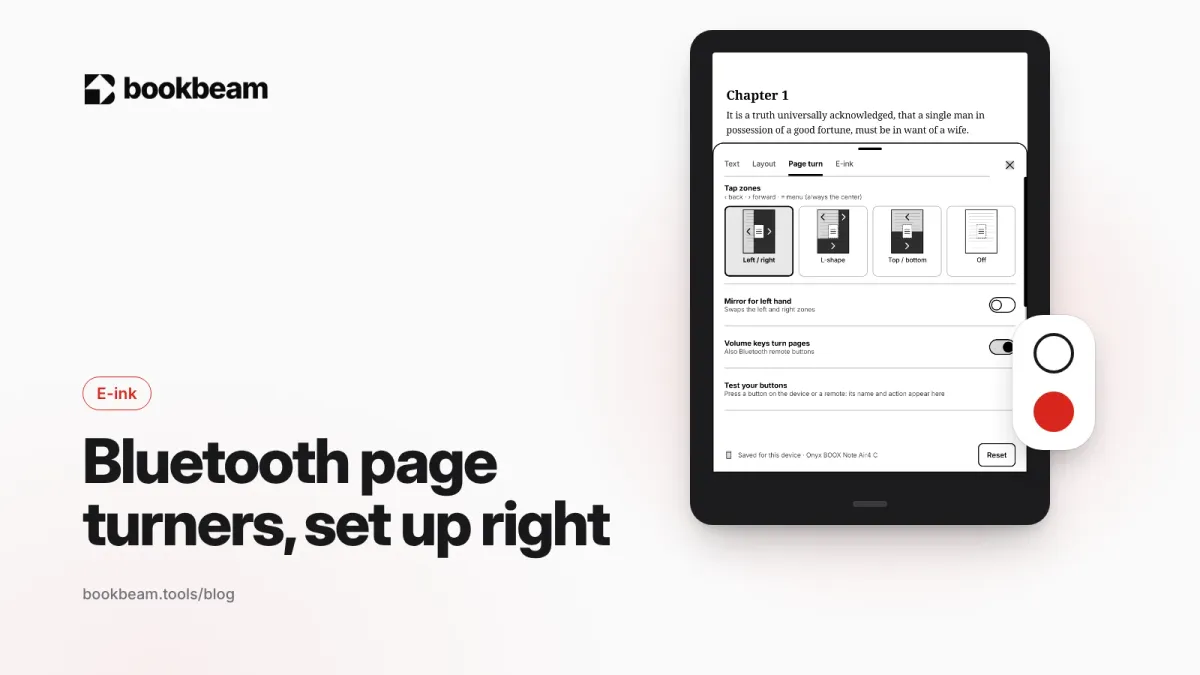
Short answer: pair the page turner in Android's Bluetooth settings, open your reading app's page-turn settings, and press each button to see what it does. Most Bluetooth page turners send either volume keys or keyboard keys like arrows or Page Up/Down, and a good reading app lets you map those to next and previous page. This guide covers which remotes work with Android e-readers like BOOX, how to set them up, and how to fix the usual problems.
Full disclosure: we make Bookbeam Reader, an Android reading app with a page-turn settings tab and a "Test your buttons" screen. The pairing steps and remote advice work with any app.
How Bluetooth page turners work on Android
A Bluetooth page turner is a tiny wireless keyboard or game controller. When you press a button, it sends a key, the same way a real keyboard would. Android passes that key to whatever app is open, and the reading app decides what to do with it.
Most remotes send one of these:
- Volume up / volume down. Common on cheap "selfie" and page-turner remotes. Works in any app that lets you turn pages with volume keys.
- Arrow keys or Page Up / Page Down. Common on remotes sold for e-readers, tablets and sheet music.
- Game controller buttons. Small controllers like the 8BitDo Micro, often remapped to keyboard keys with the maker's software.
- Media keys (play, pause, next track). Some remotes have a mode for audiobooks and music.
That's why the same remote can work perfectly in one app and do nothing in another. The fix is almost always in the reading app's settings, not in the remote.
Popular page turners for Android e-readers
| Remote | Works with | Price (US, approx.) | Notes |
|---|---|---|---|
| BOOX Tappy | BOOX devices; some Android phones | About $26 to $30 | Two buttons, swappable keycaps, reading, browsing and listening modes, USB-C charging |
| 8BitDo Micro | Android, BOOX, Kobo and more | Varies | Tiny controller; buttons can be remapped with 8BitDo's software |
| 8BitDo Zero 2 | Android, BOOX | Varies | Cheaper and older; check whether yours charges by micro-USB or USB-C |
| Ring and clip-on remotes | Most Android devices | Varies | Worn on a finger; often send volume keys |
| Kobo Remote | Kobo e-readers | $44.95 | Made for Kobo |
| Kindle Click | Kindles released in 2024 or later | $34.99 | Made for Kindle; side buttons control brightness |
Prices are list prices at the time of writing; the Tappy's price differs slightly between BOOX's store and Amazon. The Kobo and Kindle remotes are designed for their own e-readers, so we don't recommend them for Android.
BOOX Tappy
BOOX's own remote launched in 2026. It has two buttons with swappable keycaps and three modes: reading (page turns), browsing (vertical scrolling) and listening (audio controls). Hold both buttons for five seconds to switch modes; a green light flashes to confirm. BOOX says it's designed for BOOX e-readers, and that other devices aren't guaranteed, though reviewers have had it turning pages in other Android apps.
8BitDo Micro and Zero 2
These tiny game controllers are long-time favorites in BOOX and Kobo communities. The Micro supports 8BitDo's Ultimate Software, so you can remap buttons, and some users map a button to BOOX's full-screen refresh. The Zero 2 is cheaper and works fine as a page turner.
Ring remotes and mini keyboards
Ring-style remotes are handy for reading on a treadmill or under a blanket, since there's nothing to hold. Some readers also use three-key mini keyboards, setting two keys for pages and one for a screen refresh.
Don't forget wired earphones
The volume buttons on wired earphones can turn pages in apps that support headset buttons. No pairing, no charging. You may need a USB-C audio adapter if your earphones use a 3.5 mm plug.
Step 1: pair the remote with your Android device
- Charge the remote, or put in a fresh battery.
- Put the remote in pairing mode. This is usually a long press on the power button until a light blinks; check its manual.
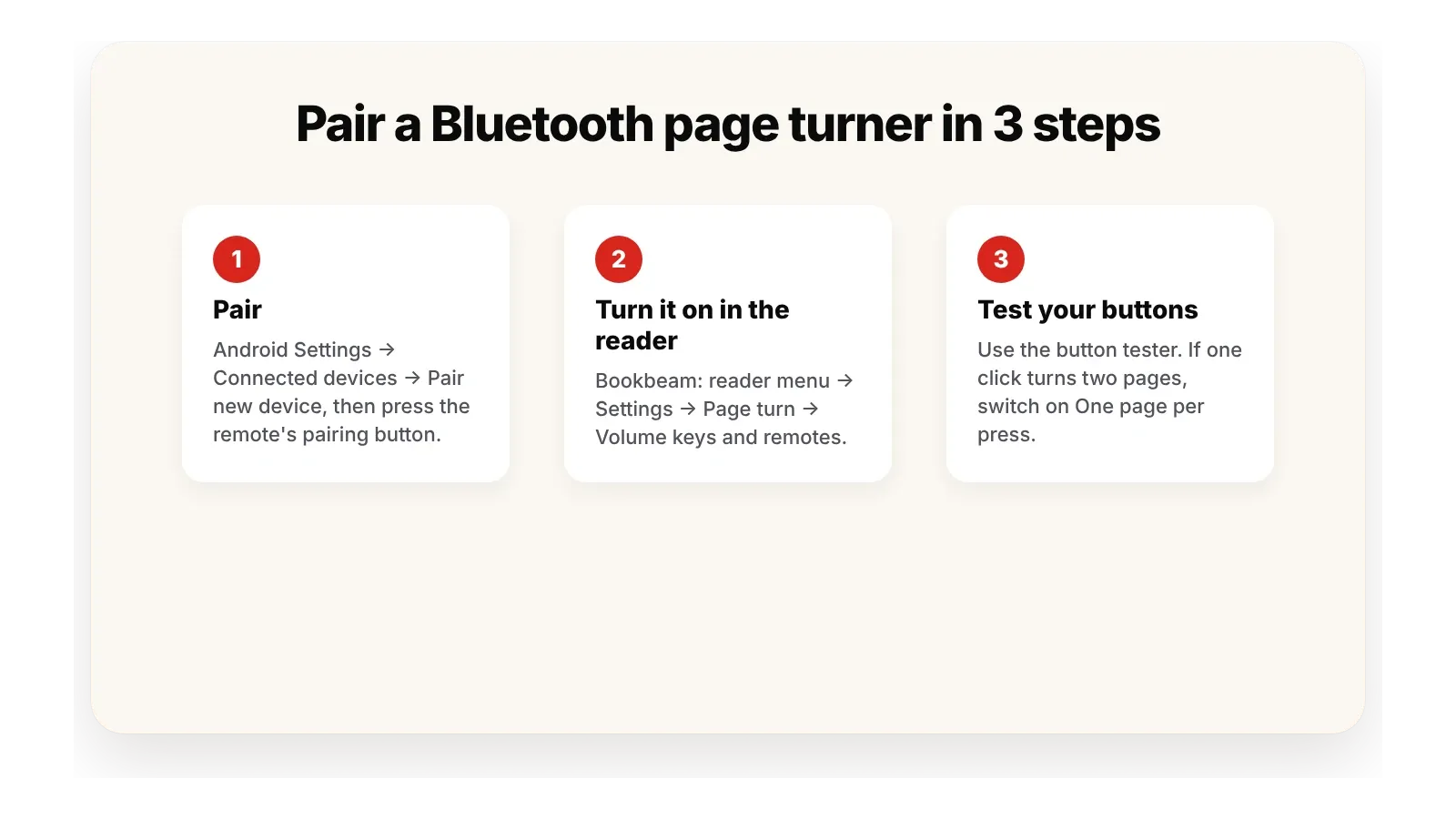
- On your phone, tablet or BOOX, open Settings → Bluetooth (on BOOX, it's also in the Control Center) and turn Bluetooth on.
- Choose the remote from the list of available devices and confirm.
- If it has modes, set it to its reading or page-turn mode.
Once paired, it should reconnect automatically when you turn it on. If it shows up as a keyboard, that's normal.
Step 2: set up page turning in your reading app
Here's how it works in Bookbeam. Other apps have similar settings under names like "Controls" or "Keys".
- Open a book and open the Reader menu.
- Go to Settings → Page turn.
- Make sure volume keys and Bluetooth remotes are allowed to turn pages.
- Open "Test your buttons" and press each button on the remote. You'll see what the app receives, so you know the remote is talking to it.
- Turn on "One page per press" if a single press skips two pages.
- Turn on "Reverse volume direction" if the buttons go the wrong way.
- Reading with your left hand? "Mirror for left hand" flips the layout.
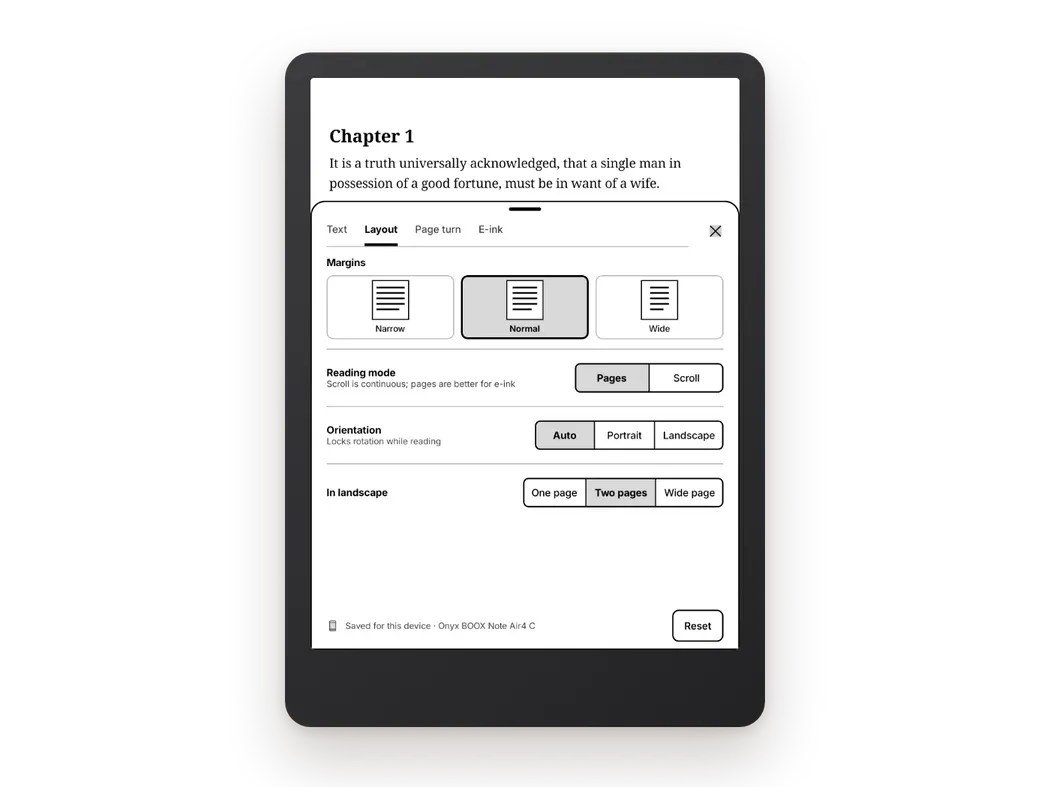
Headset buttons also turn pages in Bookbeam, so wired earphones work without extra setup.

Works with your page turner. Bookbeam Reader supports Bluetooth remotes and volume keys out of the box.
Step 3: tune it for e-ink
On an e-ink device, remotes help more than you'd think: you don't touch the screen, so there are fewer accidental taps and fewer partial refreshes.
- Set your reading app to HD refresh mode on BOOX for the cleanest pages.
- Choose a full refresh every N pages in the reading app. In Bookbeam that's Settings → E-ink.
- If your remote has a spare button, map it to a full refresh where your device or remote software allows it.
More on this in how to reduce ghosting on BOOX and other e-ink screens.
Troubleshooting common problems
The remote pairs but doesn't turn pages
Your reading app probably isn't listening for the key the remote sends. Use a button tester (Bookbeam's "Test your buttons") to see what arrives. If nothing shows up, try the remote's other modes; many have a keyboard mode and a media mode.
One press turns two pages
Some remotes send a key both when pressed and when released, or send two keys per press. Turn on "One page per press" in Bookbeam.
The buttons go the wrong way
Use "Reverse volume direction", or swap the buttons in the remote's own software if it has any.
The volume changes instead of the page
The app isn't using volume keys for page turns, or you're outside the reading view. Turn on volume-key page turning in the app's settings and make sure a book is open.
The on-screen keyboard disappears
Android can treat a paired page turner as a physical keyboard and hide the on-screen one. Turn the remote off when you need to type, or check Android's keyboard settings for an option to keep the on-screen keyboard visible.
It disconnects after a while
Most remotes sleep to save battery. Press a button to wake it. On e-readers with aggressive power saving, check that Bluetooth stays on while the screen is off.
It works on my phone but not my BOOX
Forget the remote in Bluetooth settings and pair it again, then restart the reading app. Make sure the remote is in its reading mode (the Tappy, for example, also has browsing and listening modes). Then retest with "Test your buttons".
Which page turner should you buy?
- BOOX owner who wants it simple: the BOOX Tappy.
- Want to remap every button, or use it across devices: 8BitDo Micro.
- Cheapest option: a generic Bluetooth remote that sends volume keys, or the wired earphones you already have.
- Reading while exercising or lying down: a ring remote.
Some e-readers also have physical buttons built in, such as the BOOX Go 7 and Go Color 7 Gen II. If you're still choosing hardware, see the best Android e-ink tablets in 2026 or BOOX vs Kindle.
Picking a reading app that handles remotes well
The remote is only half of it. Your reading app needs to accept the keys, let you choose directions, and not get confused by double presses. When comparing apps, check for:
- Volume-key and Bluetooth remote support.
- Reverse direction and left-hand options.
- A way to test buttons.
- Headset button support.
- Paged reading with a full-refresh interval for e-ink.
Bookbeam does all of these. Full disclosure again: we make it. It also opens EPUB, PDF, DRM-free MOBI and AZW3, FB2, TXT and CBZ comics, and syncs your progress across devices. For a full comparison, see the best reading app for BOOX and our hub on the best e-book reader apps for Android in 2026. Need help with a setting? Our help pages cover it.
Read better on e-ink. Bookbeam Reader turns pages without ghosting, reads aloud and translates as you read.
FAQ
Do Bluetooth page turners work with BOOX?
Yes. BOOX devices run Android, so they pair with Bluetooth remotes like any phone. BOOX also sells its own remote, the Tappy.
Can I use a Kindle Click with an Android e-reader?
The Kindle Click is made for Kindles released in 2024 or later. For Android, choose a remote designed for Android or a generic Bluetooth one.
Why does my page turner change the volume?
It sends volume keys, and your app isn't set to use them for page turns. Turn on volume-key page turning in the reading app.
Can I turn pages with my earphones?
In apps that support headset buttons, yes. Bookbeam turns pages with headset buttons.
Do I need a special app for my page turner?
Usually not. Pairing in Android settings is enough. Some controllers, like the 8BitDo Micro, have optional software to remap buttons.
The bottom line
Pair the remote, open your reading app's page-turn settings, test each button, and fix direction or double turns with a toggle. With the right app, almost any Bluetooth remote becomes a page turner. Try it in Bookbeam: every new account gets a 7-day Pro trial, no card needed.
Give it a week. Run Bookbeam alongside your current app and keep whichever you reach for.
Written by
Keep reading
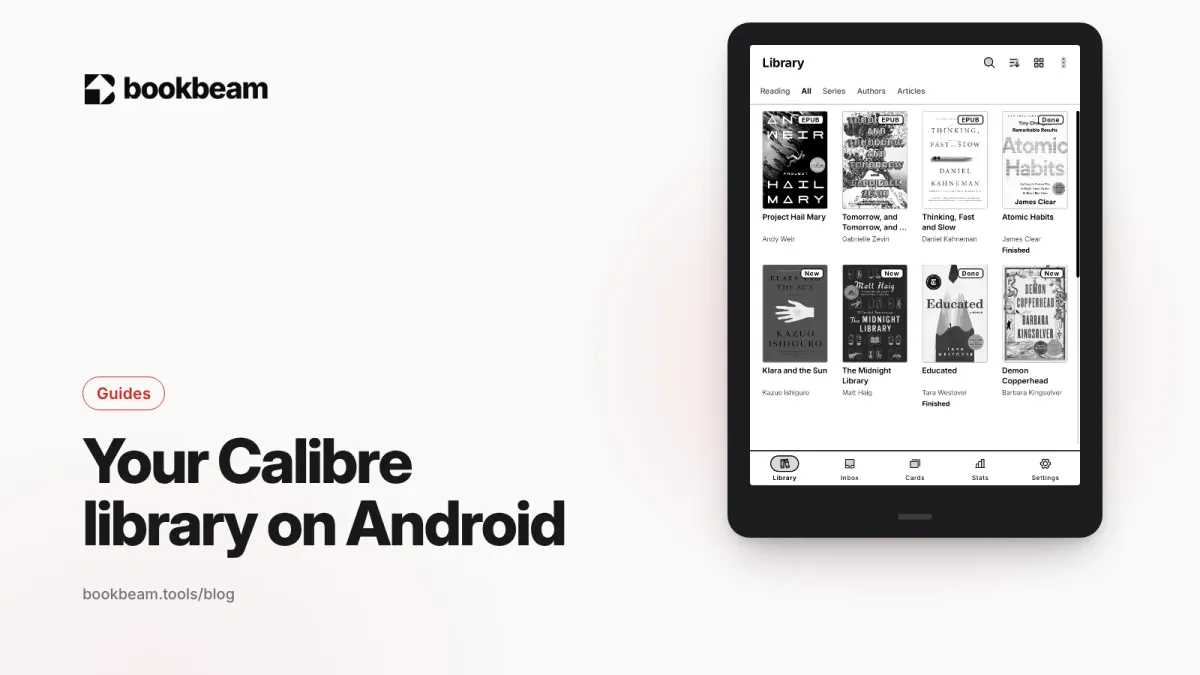
How to use your Calibre library on Android
Calibre's built-in Content server publishes your library as an OPDS catalog. Here's how to connect it to an OPDS-capable Android app, lock it down with a password, reach it away from home, fix the usual connection problems, and get Calibre books into Bookbeam by exporting and uploading them.
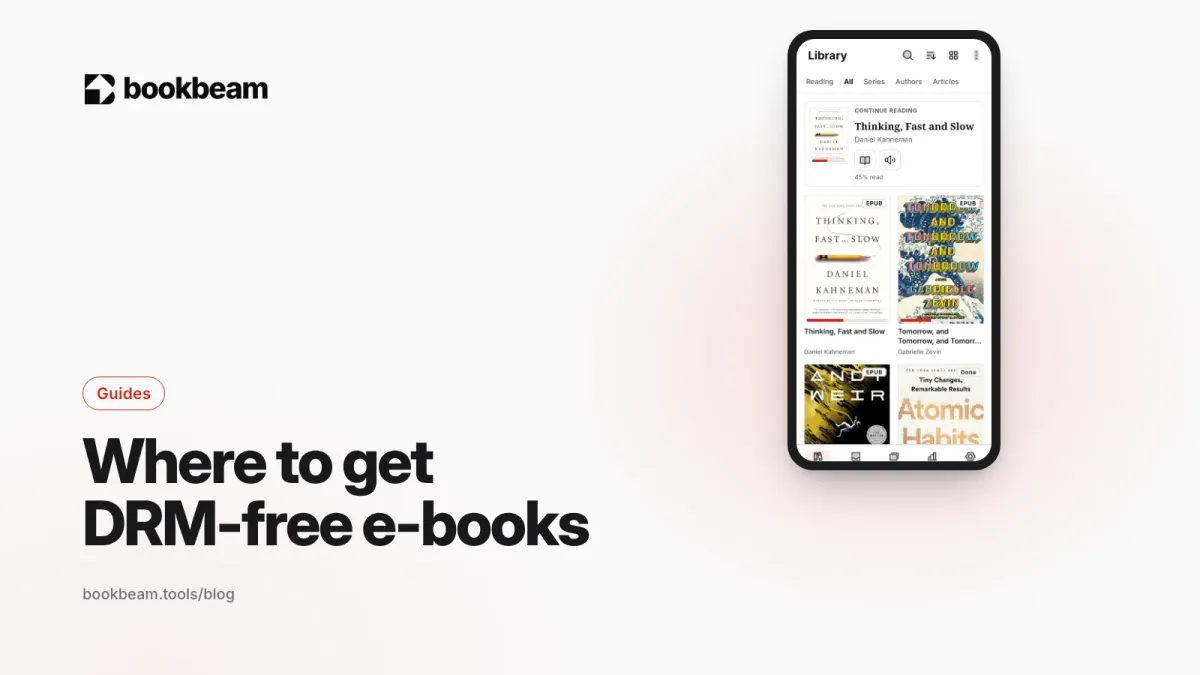
Where to get DRM-free e-books (and why it matters)
A DRM-free e-book is one you actually keep. Here's where to find them in 2026, from free classics to new fiction, how to spot DRM before you buy, and how to read your DRM-free library on Android and e-ink.
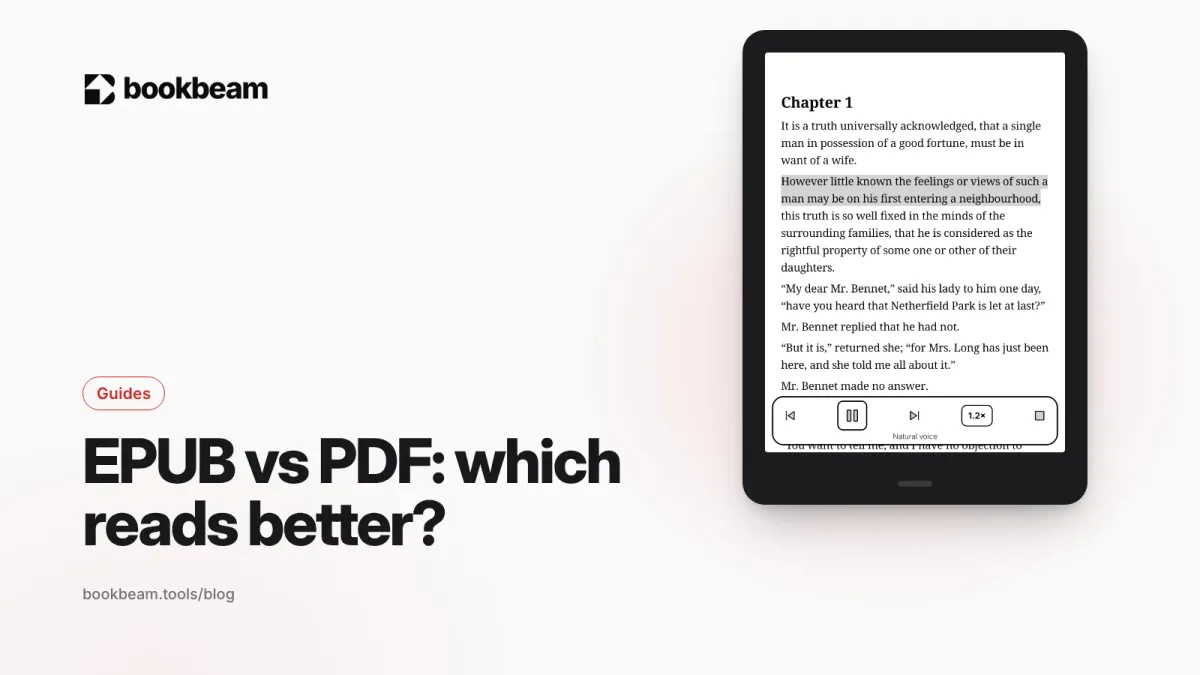
EPUB vs PDF: which is better for reading?
EPUB reflows to fit any screen; PDF keeps the page exactly as designed. Here's when each format wins, how they behave on phones and e-ink readers, and what to do when you have the wrong one.
Questions or thoughts? Share them below.