
How to keep track of characters in long novels (without spoilers)
A spoiler-free way to keep track of characters, places and terms in long novels, with Bookbeam's Book guide and simple habits that work in any app.

Michal Wlosik
· 6 min read
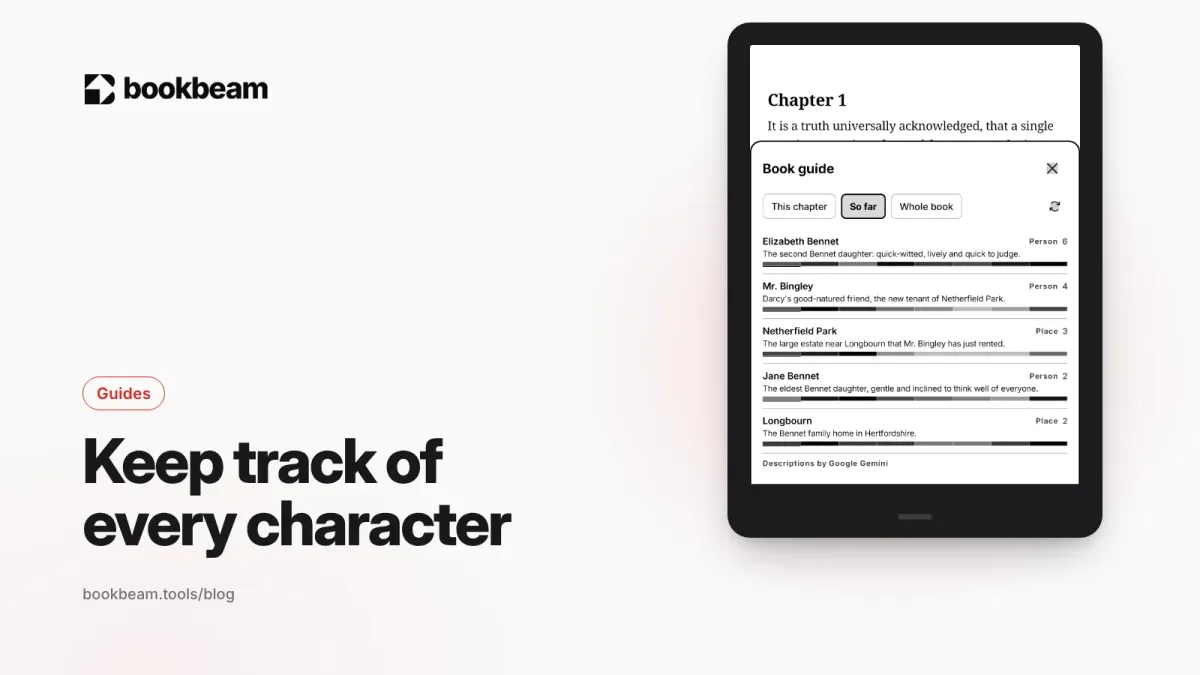
Short answer: the easiest way to keep track of characters and places in a long novel is a guide that knows how far you've read. Bookbeam Reader's Book guide lists the people, places and terms in your book, and its "So far" view only shows what you've already met, so you can check who someone is without spoilers. "This chapter" narrows it to the names in the chapter you're reading. If you prefer paper, a simple character list in a notebook or in your highlights works too, and we cover that below.
Full disclosure: we make Bookbeam. The tips in this guide work with any reading app, and we'll point out where the Book guide helps.
Why long novels are hard to keep straight
You're 300 pages into War and Peace, a new chapter opens with a name you half remember, and you can't tell if it's the prince from the ballroom or his cousin. Big novels are full of moments like this:
- Huge casts. Russian classics, family sagas and epic fantasy can introduce dozens of named characters.
- Several names per person. First name, surname, title, nickname, patronymic. In Crime and Punishment, "Raskolnikov", "Rodion Romanovich" and "Rodya" are the same man.
- Long gaps. A character appears in chapter 3, vanishes, and returns in chapter 40.
- Breaks between reading sessions. If you read a few pages a night, or put a book down for a week, the details fade.
- Reading in another language. Unfamiliar names are harder to remember when the rest of the text also takes effort.
The usual fix is to search the web for a character list. That works, but it's the fastest way to spoil a book: lists and wiki pages happily tell you who dies, who marries whom and who was secretly someone else all along.
What the Book guide does
The Book guide in Bookbeam, part of Pro, is a list of the people, places and terms in the book you're reading, built from the book itself. Each entry has a name, a short description and a label (person, place and so on), so you can see at a glance who someone is.
The important part is that you choose how much of the book it's allowed to know about:
- So far shows only the names you've already met, up to where you are now. This is the spoiler-free view, and the one we'd use by default.
- This chapter shows the names in the chapter you're reading. It's great at the start of a chapter, as a quick "who's in this scene?"
- Whole book shows everything. The app warns you that this view can show names you haven't met yet, so save it for rereads or for books where you don't mind.
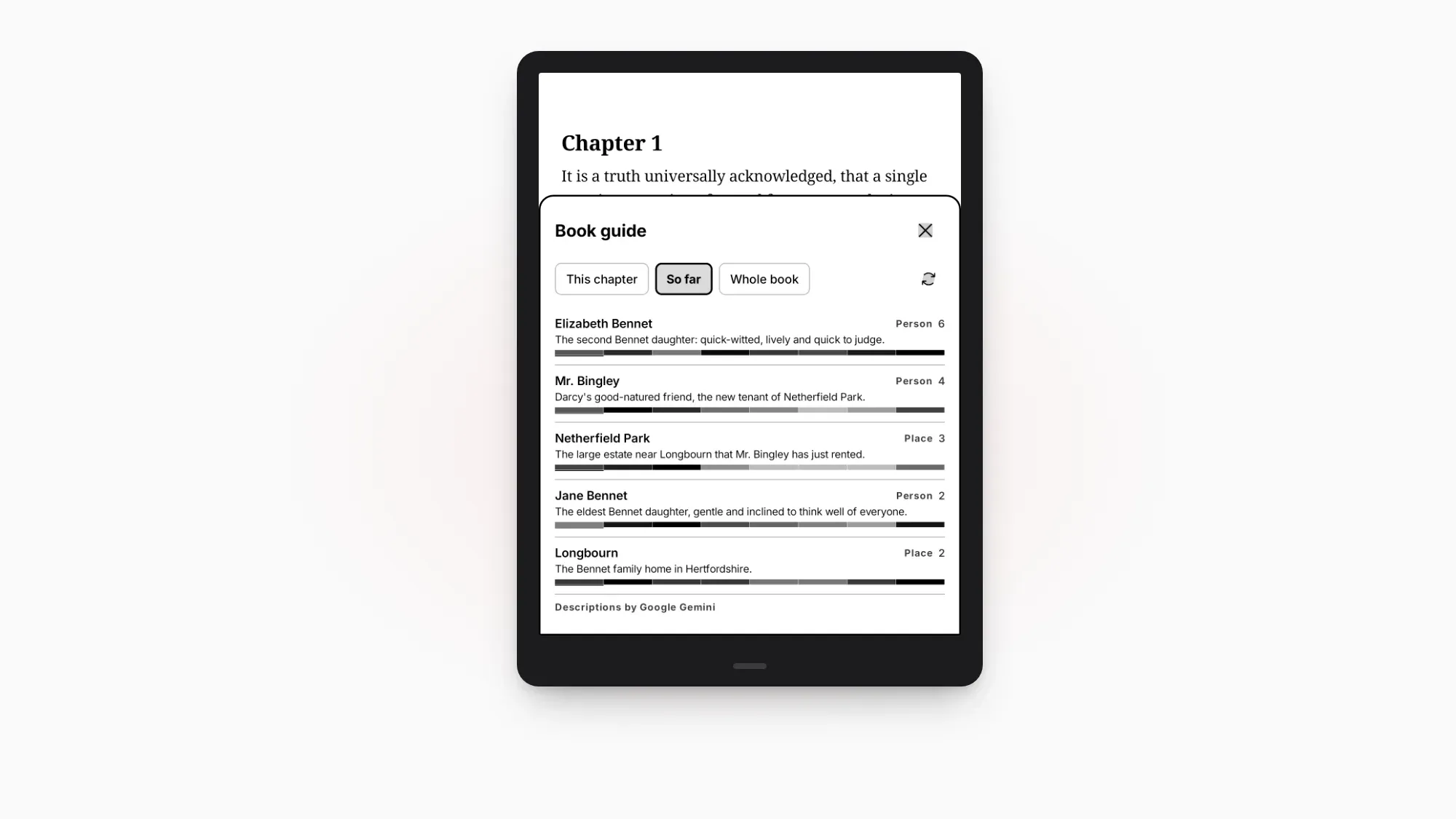
How to open the Book guide
- Open a book in Bookbeam.
- Tap the middle of the page to show the reader menu.
- Open the "More" menu and choose Book guide.
- Pick So far, This chapter or Whole book at the top.
- Close it and you're back on your page.
The first time you open it for a book, Bookbeam reads through the book to build the guide, which can take a moment for a long novel. After that it opens straight away.

Who's that again?
Bookbeam's Book guide reminds you who's who, without giving away what happens next.
When the Book guide helps most
Russian classics and family sagas
Tolstoy, Dostoevsky and their many name forms are the classic case. "So far" lets you check a name without risking a glance at a later chapter. The same goes for multi-generation stories like One Hundred Years of Solitude, where names repeat across generations.
Epic fantasy and sci-fi
Invented places, factions, titles and terms pile up fast. The guide lists terms as well as people and places, so "who" and "what is that" are both covered.
Picking a book back up
Coming back after a week away? Open "This chapter" before you start reading to see who's on stage, then "So far" if a name still doesn't ring a bell.
Reading in another language
When the vocabulary is already work, names are one more thing to hold in your head. The Book guide takes that load off. If you're learning a language through books, pair it with the long-press dictionary (which saves looked-up words as flashcards) and, on Pro, bilingual reading. More in how to learn a language by reading books and bilingual books.
Listening instead of reading
Names are even harder to follow by ear. If you use read aloud, the Book guide is a quick way to put a face to a name you only heard. See how to turn your e-books into audiobooks.
Other ways to keep track (with any app)
You don't need a special feature to stay on top of a big cast. These habits work in any reader, or on paper:
- Highlight first appearances. When a character is introduced, highlight the sentence and add a one-line note: "Pierre: awkward, rich, illegitimate son". Your highlights then become a character list in reading order. In Bookbeam, highlights and notes sync across your devices.
- Keep a list at the back of a notebook. Name, one detail, the chapter where they appeared. Old-fashioned, and it works.
- Use the book's own extras. Many editions of long novels include a list of characters or a family tree at the front. Check the table of contents.
- Look up a name in the text. Searching for a name shows earlier mentions, which is often enough to jog your memory.
- Be careful with web character lists. If you do look online, use study-guide pages organized by chapter, and stop at the chapter you've reached.
Tips for spoiler-free reading
- Make "So far" your habit. Only switch to "Whole book" on purpose.
- Check one name, then close it. If you're very spoiler-sensitive, look up the name you need rather than browsing the whole list.
- Skip the back-cover blurb on long series. Blurbs for later volumes often give away earlier ones.
Read the same book on every device
Long novels are often read in many places: a chapter on the train on your phone, a longer session on an e-reader at home. Bookbeam syncs your progress, highlights and notes across devices and with the free web library, so the Book guide's "So far" follows you to wherever you've actually read up to. Here's how that works: one library on your BOOX, phone and the web.
Bookbeam opens EPUB, PDF, MOBI and AZW3 without DRM, FB2, TXT and CBZ comics. Books bought in the Kindle or Kobo stores have DRM and stay in those apps; see where to get DRM-free e-books for good sources, including many of the long classics mentioned here.
Finally finish that doorstopper. Keep track of every character in Bookbeam, then pick up on your phone where you left off on your e-reader.
FAQ
Does the Book guide spoil the story?
Not in "So far", which only shows names you've already met. "This chapter" covers the chapter you're in. Only "Whole book" can show names from later in the book, and the app warns you about that.
Which books does the Book guide work with?
It's built from the text of the book you're reading, so it's made for DRM-free e-books with real text, like EPUBs. It works best in novels and narrative non-fiction with named people and places.
Is there something like Kindle X-Ray for books I didn't buy from Amazon?
Yes. Bookbeam's Book guide does a similar job for your own DRM-free books: people, places and terms, with a spoiler-free "So far" view.
Does it work across my phone and e-reader?
Bookbeam syncs your reading progress across devices, so when you pick the book up on another device, "So far" matches where you've read to. Highlights and notes sync too.
Read big books with confidence
Long novels are worth it, and losing track of the cast shouldn't be the reason you give up on page 400. A spoiler-free guide, a few highlights and a habit of checking "So far" are usually all it takes.
Bring your longest book. Open it in Bookbeam and see who's who in the Book guide, spoiler-free.
Written by
Builder and product marketer. I make Bookbeam, an e-ink-first e-book reader for Android, and Penlo, which makes the handwritten notes on your e-ink tablet searchable. Co-author of The AdTech Book.
Keep reading
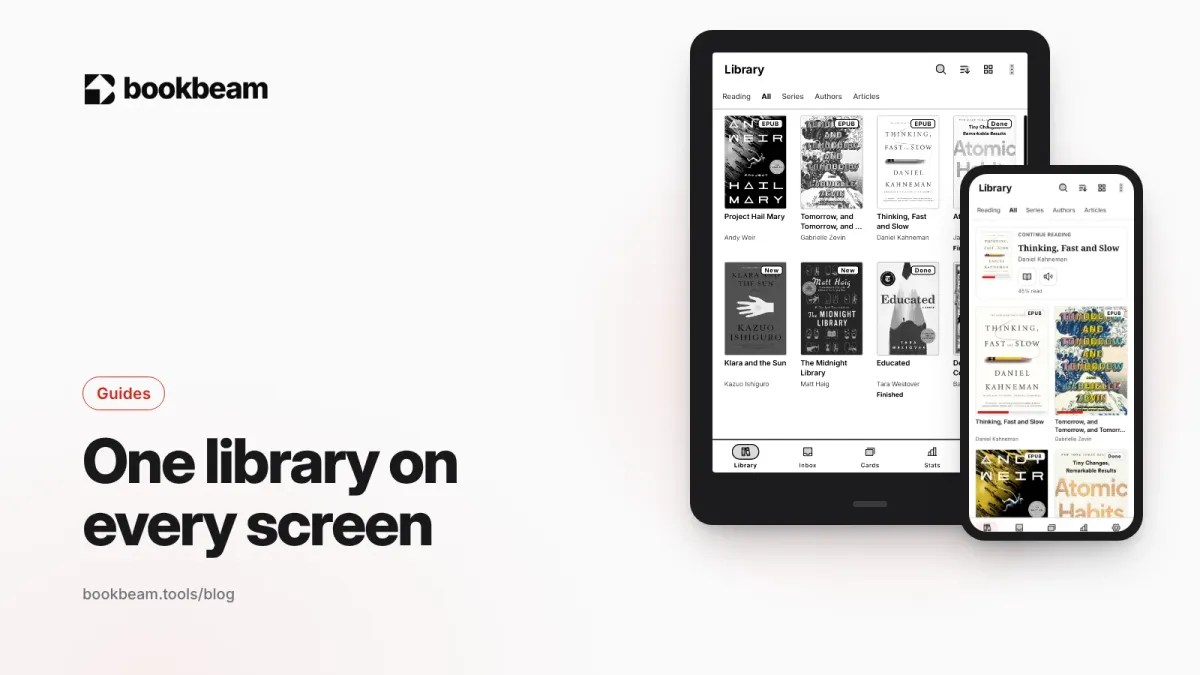
One library on your BOOX, phone and the web: how to sync your e-books
Stop copying files between devices. Keep one synced library on your BOOX, phone and the web, with progress, highlights and notes that follow you.
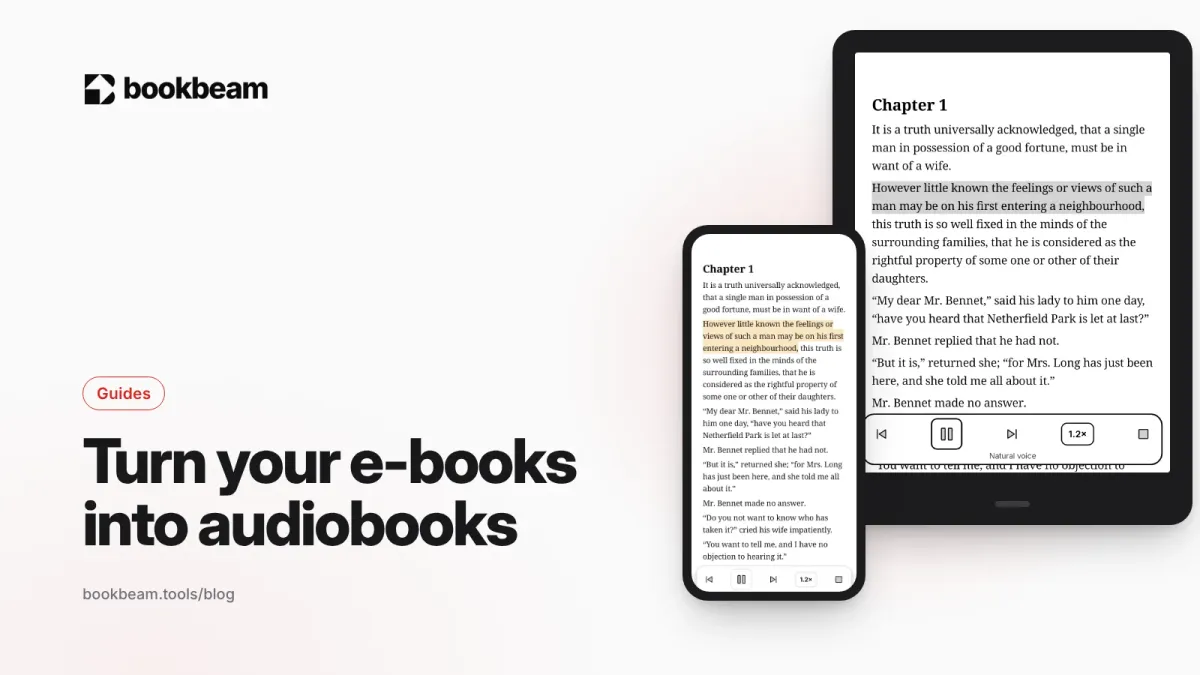
How to read your e-books just like audiobooks
Turn the e-books you already own into audiobooks on your BOOX, e-reader or phone, with a free offline voice or natural voices that follow along on the page.
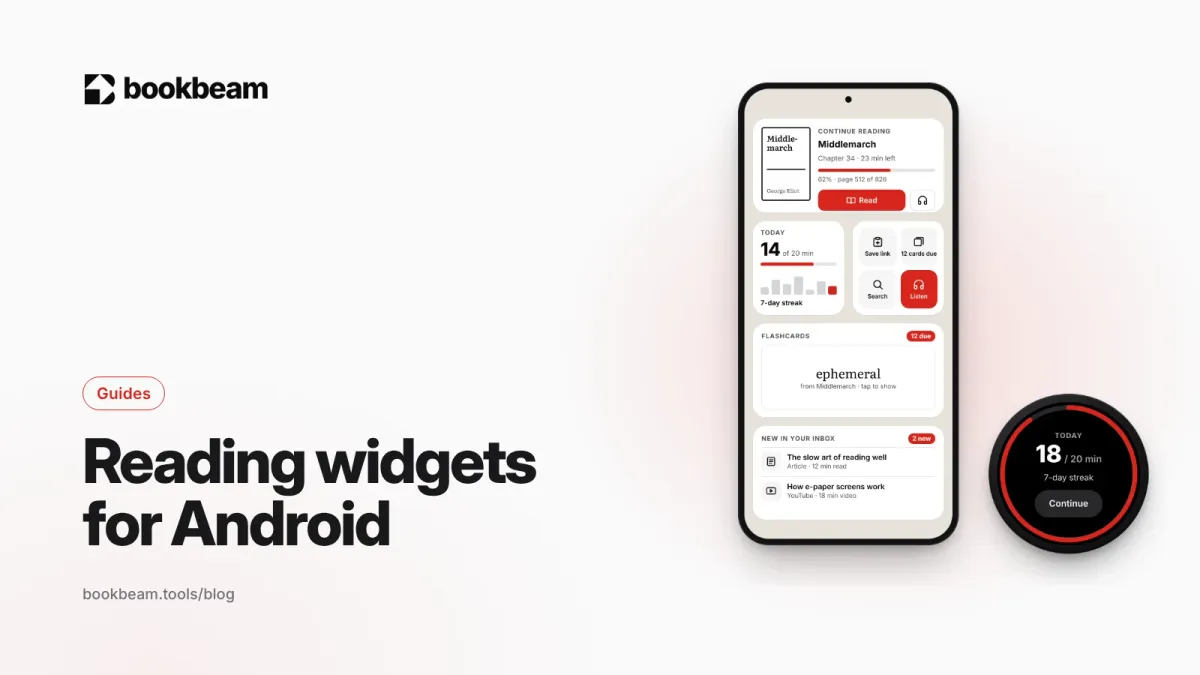
Reading widgets for Android: put your book on your home screen
The easiest way to read more is to make your book the first thing you see when you unlock your phone. Here are Bookbeam's home-screen widgets, what each one does, and how to set them up for a daily reading habit.
Questions or thoughts? Share them below.