
Reading widgets for Android: put your book on your home screen
The easiest way to read more is to make your book the first thing you see when you unlock your phone. Here are Bookbeam's home-screen widgets, what each one does, and how to set them up for a daily reading habit.

Michal Wlosik
· 3 min read
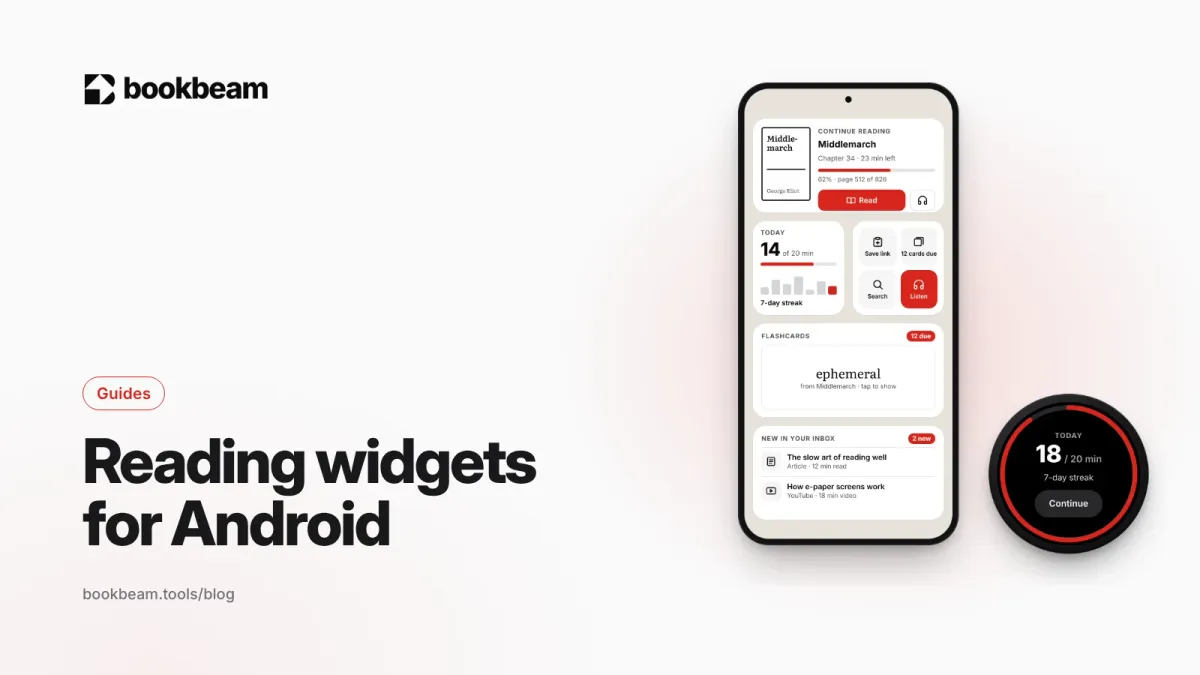
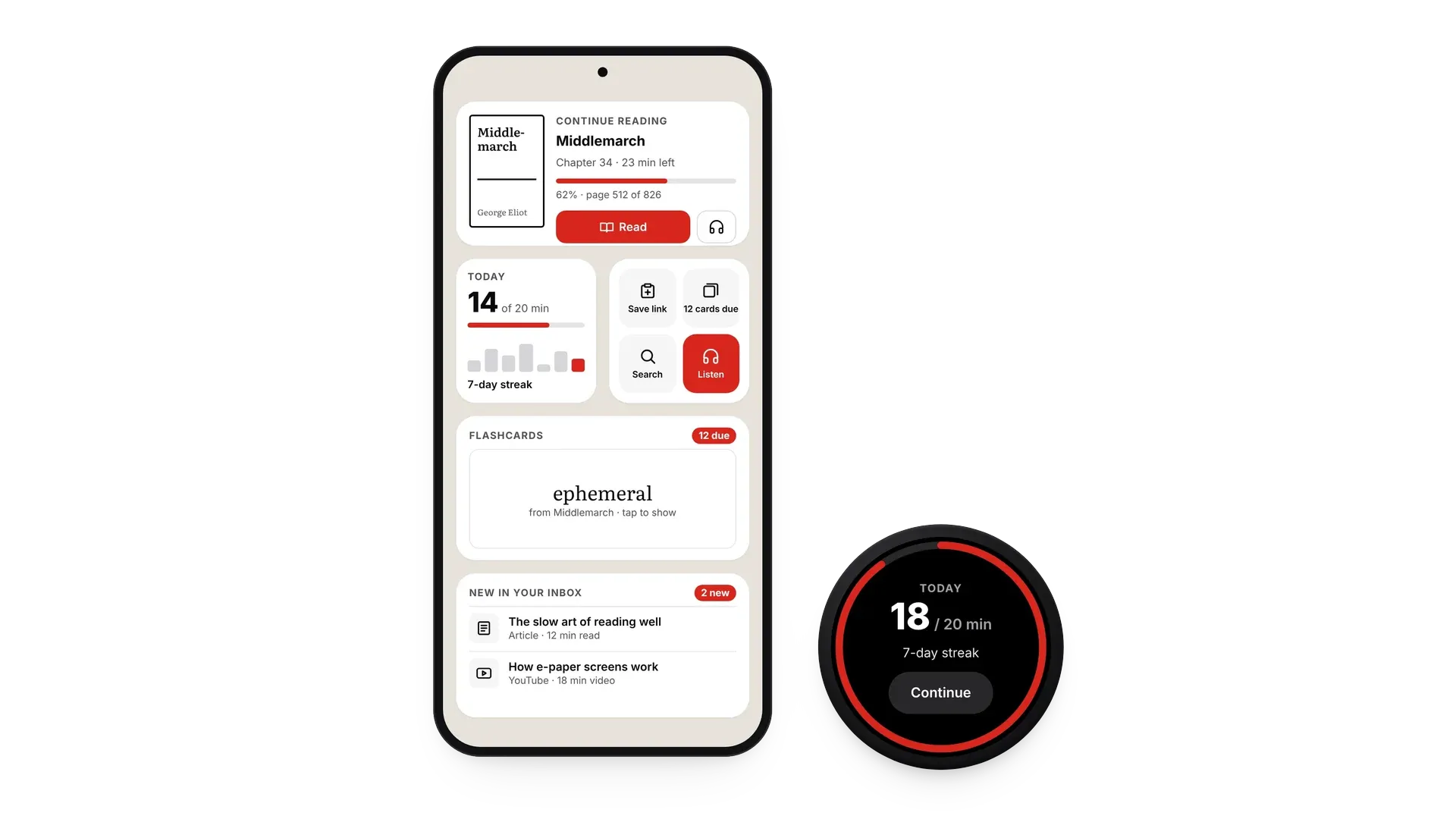
Short answer: reading widgets put your current book, your daily goal and your flashcards on the Android home screen, so a spare minute turns into a page instead of a scroll through social media. Bookbeam has six widgets: Continue reading, Today, Flashcards, New in your inbox, Quick actions and Highlight of the day. Long-press your home screen, tap Widgets, find Bookbeam and drag one in.
Why a widget helps you read more
Habits stick when the next step is obvious and takes almost no effort. Your phone's home screen is the most visited place in your day, and whatever sits there gets your spare minutes. Put your book there, with a big Read button and the time left in the chapter, and "I'll read later" becomes "I'll read now, for five minutes".
The widgets
- Continue reading (4×2). Your current book with its cover, chapter, progress and minutes left. Read opens it at your page; the headphones button starts reading it aloud.
- Today (2×2). Minutes read today against your daily goal, a seven-day bar chart and your streak.
- Flashcards (4×2). The next card due. Tap to see the answer and grade it without opening the app.
- New in your inbox (4×2). The latest articles and videos you sent from your browser.
- Quick actions (2×2). Save a link, review cards, search your library or start listening.
- Highlight of the day (4×2, Pro). A passage you highlighted, brought back to remind you why you loved a book.

Make your book the first thing you see. Bookbeam's widgets are free with the app, apart from Highlight of the day.
How to add a widget
- Install Bookbeam Reader and open a book once, so the widgets have something to show.
- Long-press an empty spot on your home screen and tap Widgets.
- Scroll to Bookbeam, then drag the widget you want onto the home screen.
- Long-press it and drag the handles to resize, if your launcher allows.
Three setups that work
- The reader: Continue reading plus Today on your first home screen. You see the book and the goal every time you unlock.
- The language learner: Continue reading plus Flashcards. Read a few pages, review a few words, all from the home screen. Pair it with the Wear OS app for reviews on your wrist.
- The read-later reader: New in your inbox plus Quick actions. Articles you saved during the day wait for the evening.
Widgets on e-ink readers
Widgets are made for phones and colour tablets. Many e-ink launchers, including BOOX's, don't show widgets at all, and on e-ink you're usually opening the reading app anyway. Your progress still syncs, so the phone widget always shows where you stopped on your e-reader. See the best reading app for BOOX for the e-ink side.
FAQ
Are the widgets free?
Yes, except Highlight of the day, which is part of Pro.
How often do widgets update?
They refresh when you finish reading, review a card or receive something new, and in the background through the day.
Are there widgets for iPhone?
No. Bookbeam Reader is an Android app. The free web library works in any browser, including on an iPhone.
Fill your inbox widget. Send to Bookbeam saves articles and YouTube videos from Chrome straight to your phone.
Listening in the car? See how to listen to e-books with Android Auto.
Written by
Builder and product marketer. I make Bookbeam, an e-ink-first e-book reader for Android, and Penlo, which makes the handwritten notes on your e-ink tablet searchable. Co-author of The AdTech Book.
Keep reading
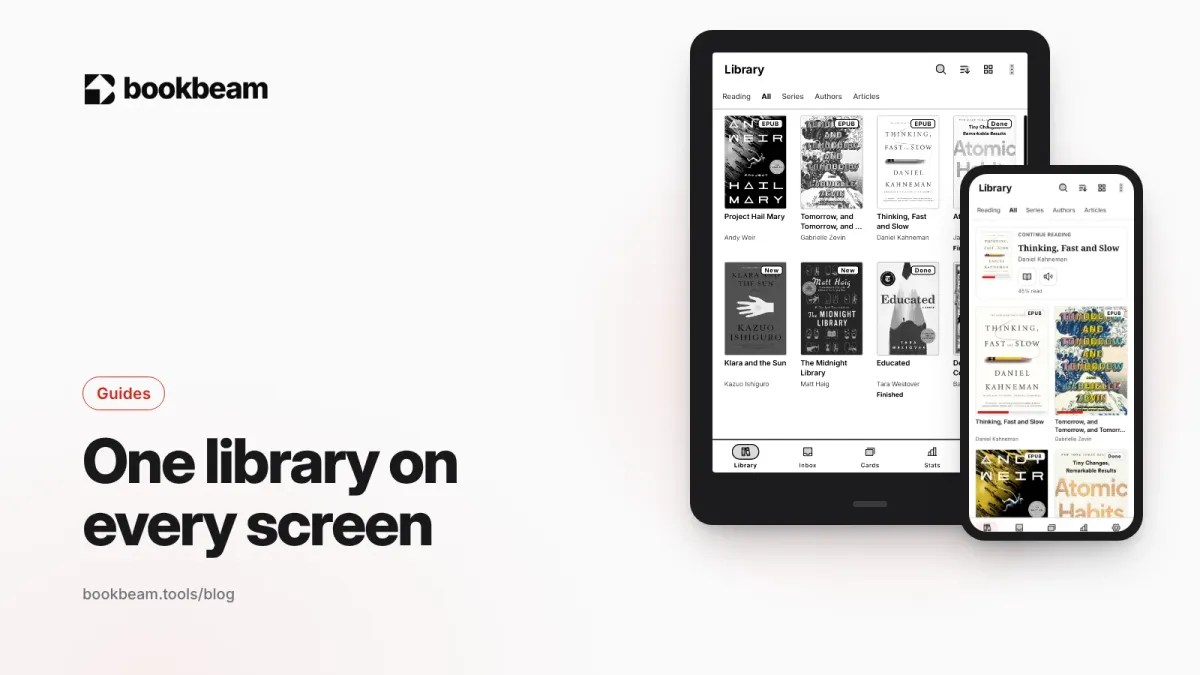
One library on your BOOX, phone and the web: how to sync your e-books
Stop copying files between devices. Keep one synced library on your BOOX, phone and the web, with progress, highlights and notes that follow you.
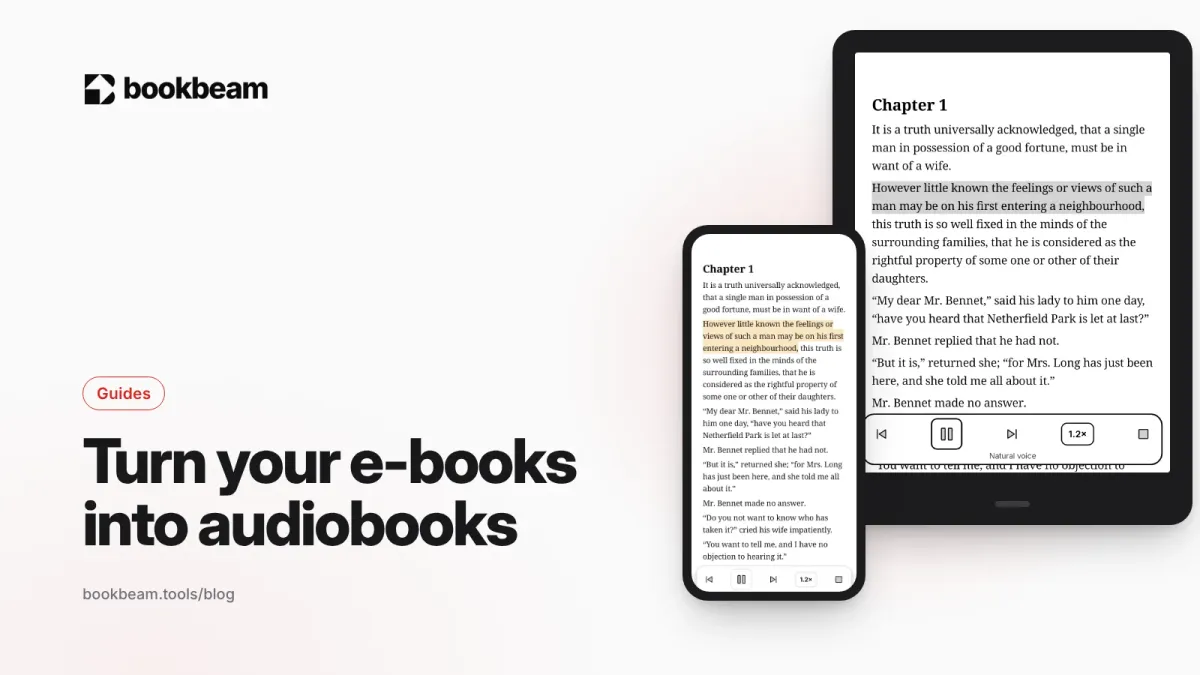
How to read your e-books just like audiobooks
Turn the e-books you already own into audiobooks on your BOOX, e-reader or phone, with a free offline voice or natural voices that follow along on the page.
How to keep track of characters in long novels (without spoilers)
A spoiler-free way to keep track of characters, places and terms in long novels, with Bookbeam's Book guide and simple habits that work in any app.
Questions or thoughts? Share them below.