
One library on your BOOX, phone and the web: how to sync your e-books
Stop copying files between devices. Keep one synced library on your BOOX, phone and the web, with progress, highlights and notes that follow you.

Michal Wlosik
· 6 min read
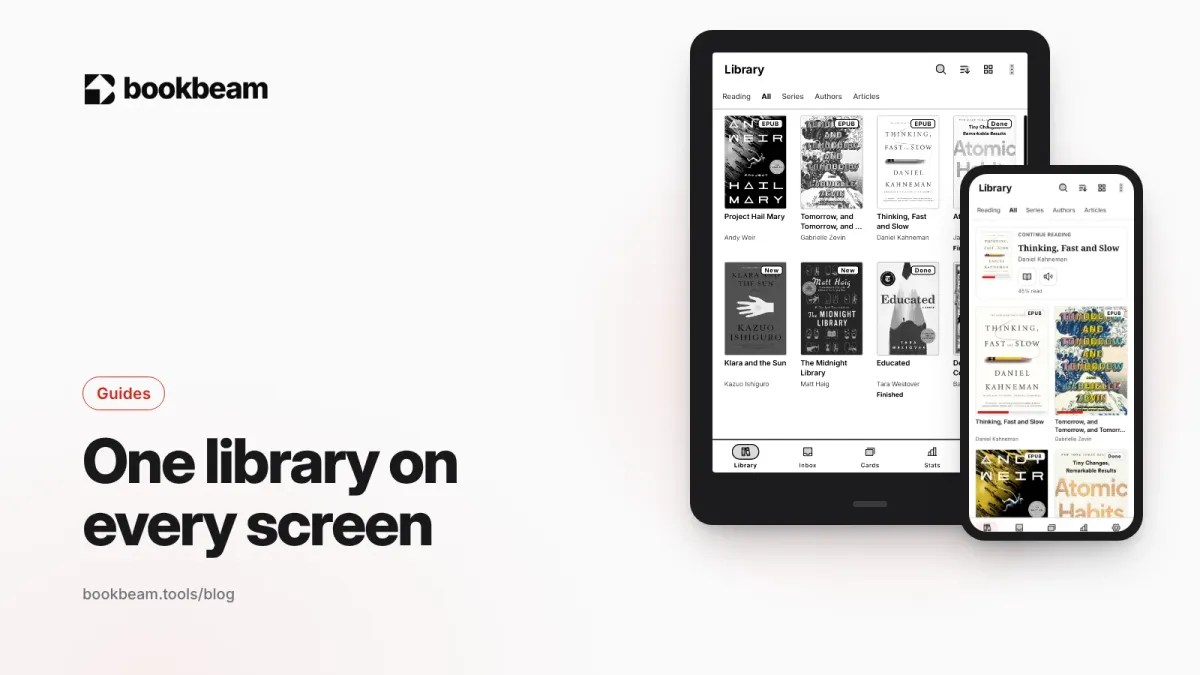
Short answer: to read the same e-books on your BOOX, your phone and the web, put them in one synced library instead of copying files to each device. In Bookbeam Reader, you upload your DRM-free books to the free web library at books.bookbeam.tools (or add them on any device), sign in on each device, and your library, reading progress, highlights, notes and flashcards follow you. The free plan covers 2 devices and 1 GB of books; Pro covers 5 devices and 25 GB.
Full disclosure: we make Bookbeam. Below is how cross-device reading works in our app, what the limits are, and a few alternatives if you already use KOReader or Audiobookshelf.
The problem with copying files around
Most people start the same way: an EPUB on the laptop, copied to the e-reader over USB, emailed to the phone, maybe dropped into a cloud folder. It works until you actually read on more than one device. Then:
- Your phone opens the book at chapter 1 when you're on chapter 12 on your BOOX.
- Highlights you made on the e-reader aren't on your phone.
- You end up with three copies of every book and no idea which is current.
- A new device means starting the whole copying process over.
A synced library fixes all of that. The book lives in one place, and each device keeps track of the same position, the same highlights and the same notes.
What Bookbeam syncs
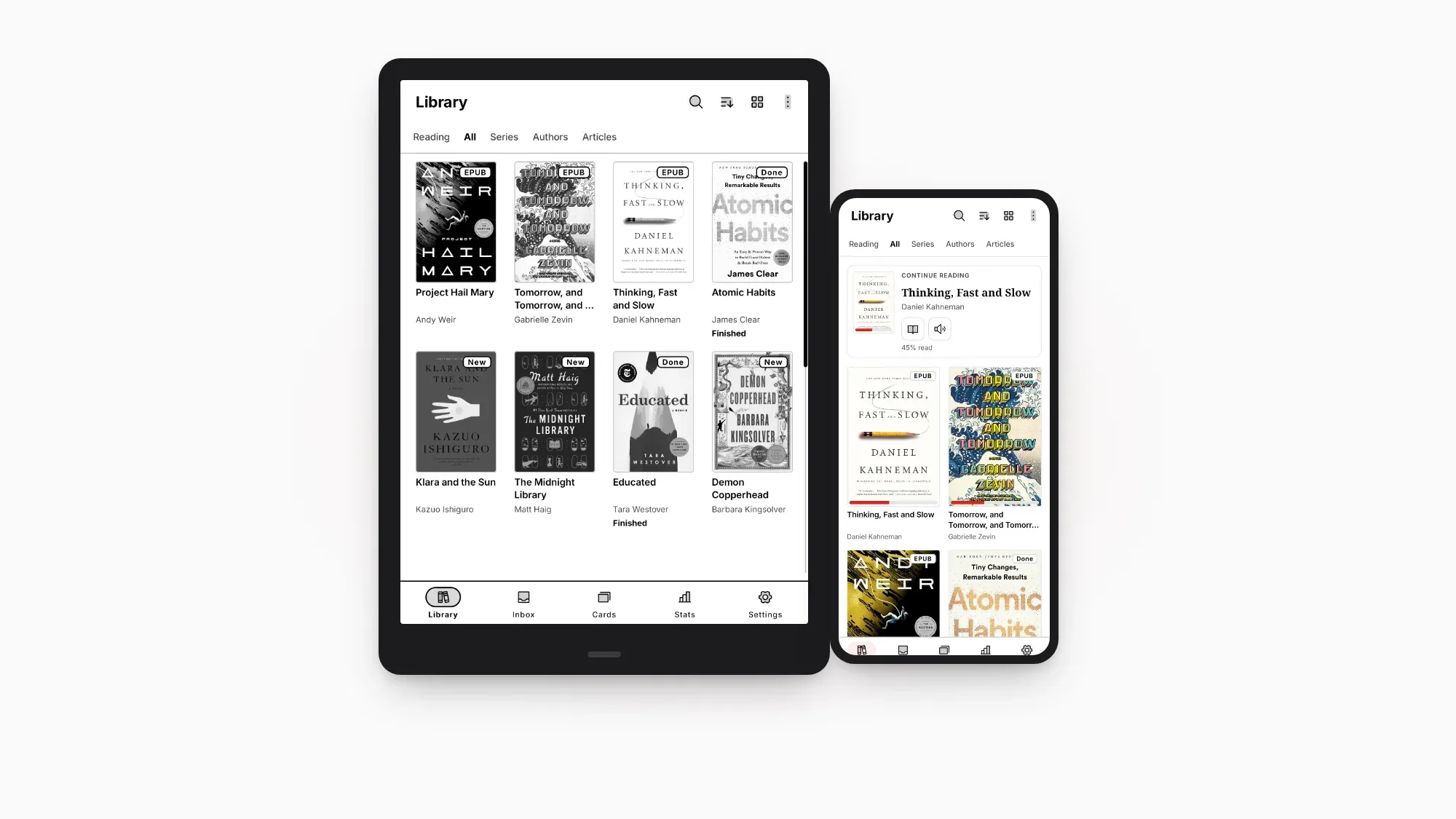
- Your library. Books you add show up on your other signed-in devices.
- Reading progress. Progress is tied to a position in the text, not a page number, so it survives switching from a 10-inch e-reader to a phone, or changing the font size.
- Highlights and notes. Mark a passage on your e-reader, find it on your phone later.
- Flashcards. Words you look up with the long-press dictionary become flashcards, and those sync too. Flashcards are free for everyone. More in how to build your vocabulary from the books you read.
Step 1: get your books into the library
You have a few ways to add books, and you can mix them:
- Upload to the web library. Go to books.bookbeam.tools in a browser on your computer, sign in and upload your files. This is the easiest way to move a whole collection at once, and it's free.
- Add from a device. In the app, Settings → Sources lets you add books from the device and its folders.
- Use your Bookbeam Inbox, which is also listed under Settings → Sources.
- Connect Audiobookshelf if you already run it for your books.
- Send web articles and YouTube videos with the Send to Bookbeam Chrome extension, part of Pro. They arrive as readable e-books in the same library. See how to send web articles to your reader and how to turn a YouTube video into an e-book.
Bookbeam opens EPUB, PDF, MOBI and AZW3 without DRM, FB2, TXT and CBZ comics. Books bought in the Kindle or Kobo stores have DRM, so they stay in those apps. If you keep your books in Calibre, export them and upload the files; we walk through it in how to use your Calibre library on Android. (OPDS catalogs aren't supported yet.)

Stop emailing books to yourself.
Upload once to Bookbeam's free web library and read on every device you own.
Step 2: sign in on each device
- Install Bookbeam Reader from Google Play on your BOOX, other Android e-reader, tablet or phone. On a new BOOX you may need to switch on Google Play in the device settings first.
- Sign in with the same account on each one.
- Your library appears. Open a book on one device, read a few pages, and open it on another: it picks up where you stopped.
Every new account gets 7 days of Pro, no card needed, so you can try it with more devices before deciding on a plan.
Step 3: read anywhere, and let sync do the rest
A typical day might look like this: a chapter on your phone on the train, a long session on your BOOX in the evening, and a quick look at your highlights in the web library on your laptop. You don't need to do anything to keep them in step.
Sync also makes features work better together. Start a book with read aloud on your phone during a walk, then switch to reading on your e-reader at home. Or check the spoiler-free Book guide on whichever device is in your hand, and it knows how far you've read.
How many devices and how much space?
| Plan | Price | Devices | Library storage |
|---|---|---|---|
| Free | $0 | 2 | 1 GB |
| Pro | $6.99/month or $59.99/year | 5 | 25 GB |
| Lifetime | $129 once | 5 | 10 GB |
For most people, 1 GB holds a lot of EPUBs, since novels are usually small files. PDFs and comics are much bigger, so if you read those, keep an eye on your storage. Two devices, say a phone and an e-reader, is the most common setup and fits the free plan. Plans are bought in the Android app through Google Play.
Already using KOReader or Audiobookshelf?
You don't have to give anything up:
- KOReader sync. Bookbeam supports KOReader sync, so you can keep KOReader on one device (a Kobo, for example) and use Bookbeam on your phone or BOOX. Many people run both. We compare the options in KOReader alternatives for Android.
- Audiobookshelf. Add your server under Settings → Sources and your books are available in Bookbeam.
Tips for a tidy multi-device library
- Upload once, from a computer. The web library is the quickest place to add many books at a time.
- Delete old copies. Once your books are in the synced library, clear out the duplicates in email attachments and random download folders.
- Check device settings separately. Reading settings like text size, margins and refresh are saved per device, since a phone and a 10-inch e-ink screen need different setups. See how to customize your e-ink reading.
- Give your e-reader a connection now and then. Sync needs the internet. If your e-reader is often offline, turn on Wi-Fi when you finish a session so your progress reaches your phone.
Your place, everywhere. Bookbeam keeps your progress, highlights and notes in step on your BOOX, phone and the web.
FAQ
Can I sync books between a BOOX and my phone?
Yes. Install Bookbeam on both, sign in with the same account, and your library, progress, highlights and notes sync between them. The free plan covers 2 devices.
Is the web library free?
Yes. The web library at books.bookbeam.tools is free, with 1 GB of library storage on the free plan and 25 GB on Pro.
Does sync keep my place if I change the font size?
Yes. Progress is tied to a position in the text rather than a page number, so it holds up across different screens and font sizes.
Can I sync Kindle books this way?
No. Kindle store books are DRM-protected and only open in Amazon's apps. Bookbeam syncs DRM-free books you own or upload.
One library, wherever you are
Reading on several devices should feel like one bookshelf, not a pile of copies. Put your books in one library, sign in everywhere, and pick up exactly where you left off. If you're still choosing an e-reader to pair with your phone, see the best Android e-ink tablets in 2026.
Set up your library in minutes. Install Bookbeam, upload a few books and open them on your next device.
Written by
Builder and product marketer. I make Bookbeam, an e-ink-first e-book reader for Android, and Penlo, which makes the handwritten notes on your e-ink tablet searchable. Co-author of The AdTech Book.
Keep reading
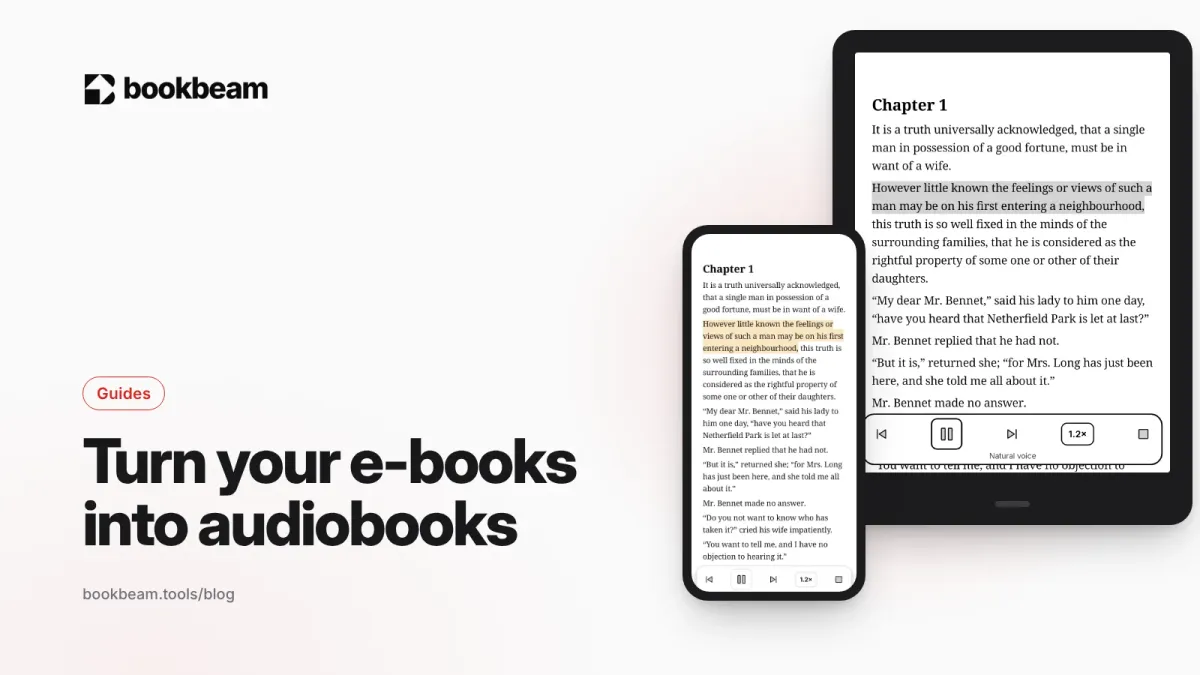
How to read your e-books just like audiobooks
Turn the e-books you already own into audiobooks on your BOOX, e-reader or phone, with a free offline voice or natural voices that follow along on the page.
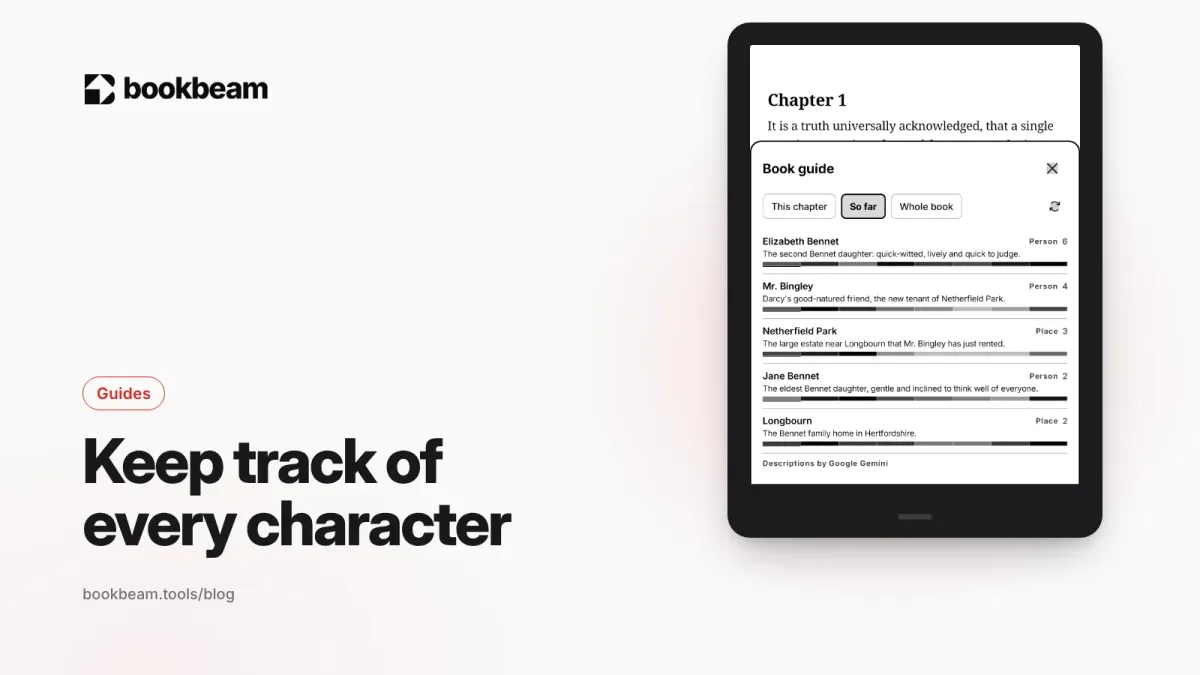
How to keep track of characters in long novels (without spoilers)
A spoiler-free way to keep track of characters, places and terms in long novels, with Bookbeam's Book guide and simple habits that work in any app.
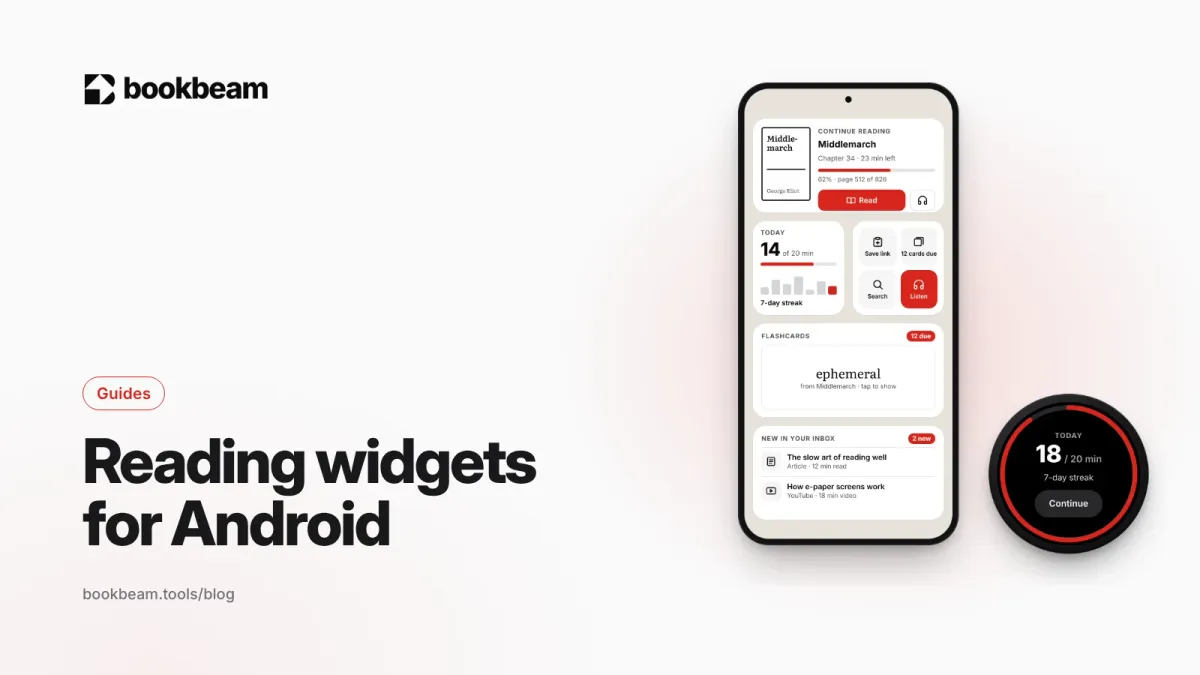
Reading widgets for Android: put your book on your home screen
The easiest way to read more is to make your book the first thing you see when you unlock your phone. Here are Bookbeam's home-screen widgets, what each one does, and how to set them up for a daily reading habit.
Questions or thoughts? Share them below.