
How to customize e-ink reading: header, page turns, refresh and text
Make e-ink reading your own: choose the header and footer, set up tap zones and remotes, tame ghosting with refresh settings, and tune text and margins.

Michal Wlosik
· 6 min read
Short answer: the four settings that make the biggest difference on an e-ink reader are the header and footer (what's shown around the text), page turning (tap zones, volume keys or a remote), refresh (how often the screen fully clears ghosting) and text (size, weight and margins). In Bookbeam Reader they live in four tabs, Text, Layout, Page turn and E-ink, and they're saved per device, so your BOOX and your phone can each have their own setup.
Full disclosure: we make Bookbeam. Most of the ideas below apply to any good reading app; we'll use ours for the exact steps and screenshots.
Where to find the settings
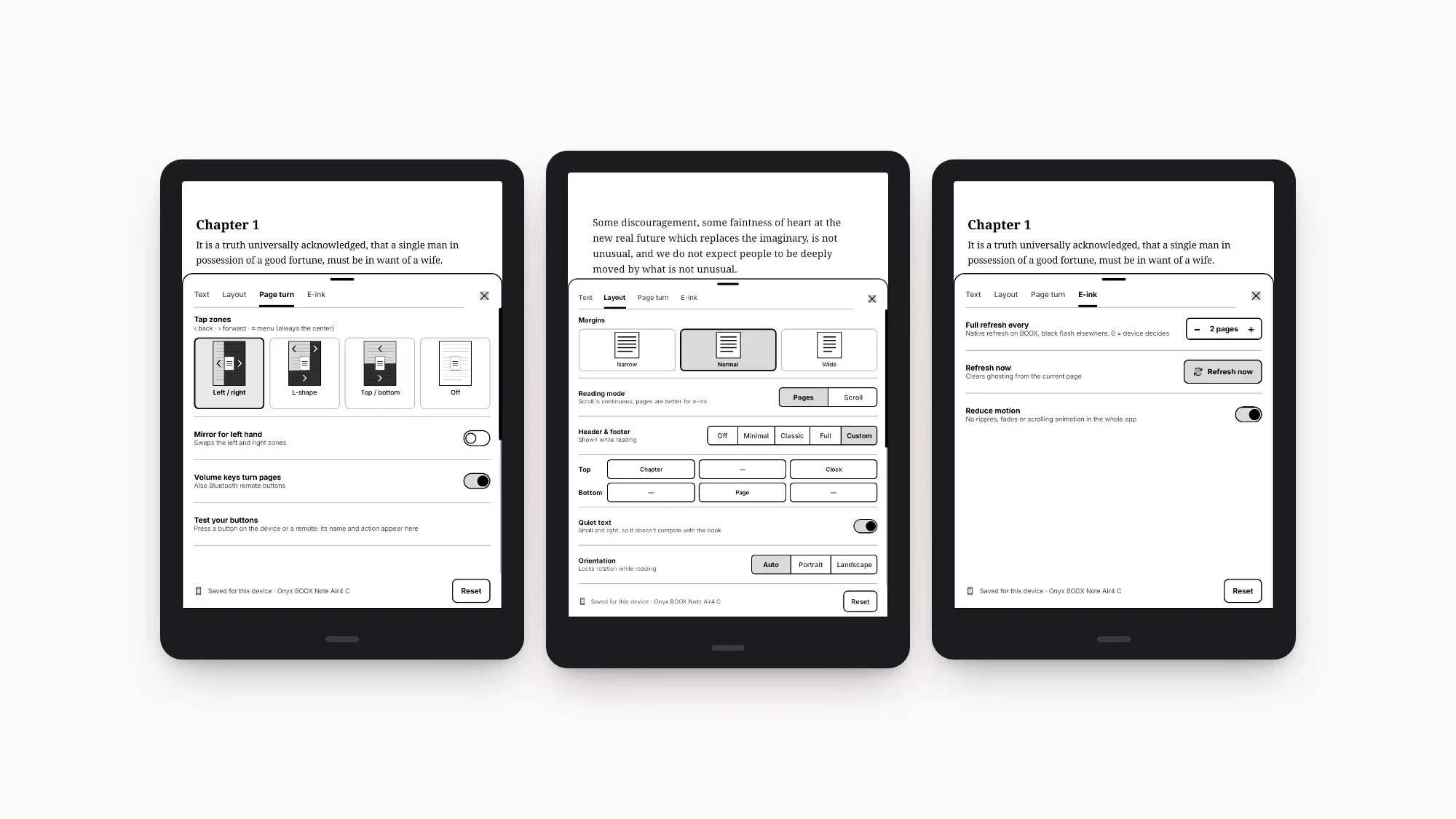
Open a book, tap the middle of the page to show the reader menu, and tap Text (the Aa button) at the bottom. A panel slides up with four tabs:
- Text: font, size, weight, line spacing, paragraphs and alignment.
- Layout: margins, header and footer, orientation and landscape pages.
- Page turn: tap zones, left-hand mode, volume keys and remotes, and a button tester.
- E-ink: full refresh interval, a "Refresh now" button and reduced motion.
The panel says "Saved for this device" at the bottom, and there's a Reset button if you want to start over. Because settings are per device, a big font on your phone won't follow you to your 10-inch e-reader. Your books, progress and highlights still sync; see one library on your BOOX, phone and the web.
Header and footer: choose what you see while reading
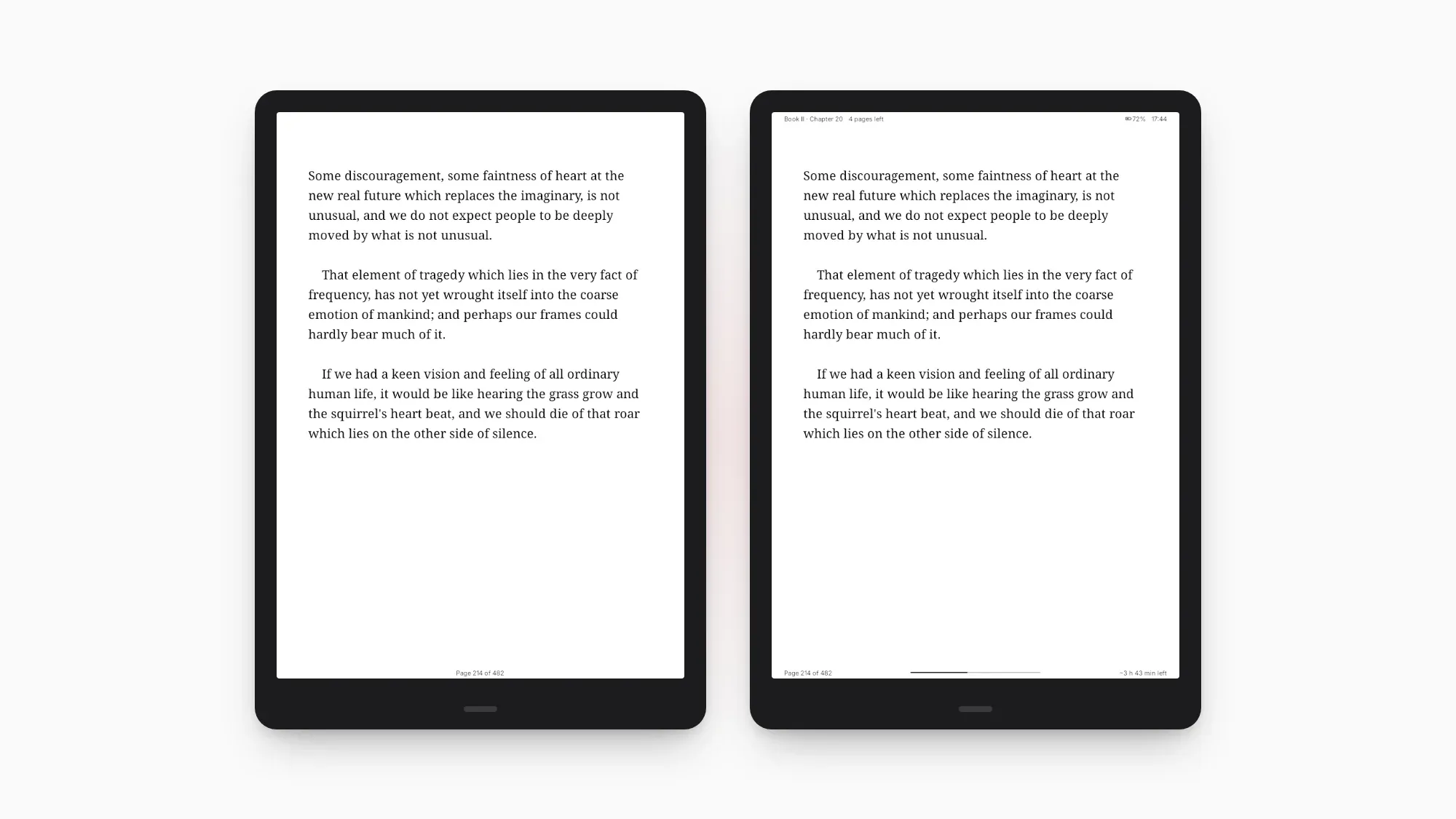
The lines of small text above and below the page can be a helpful dashboard or just clutter. Bookbeam gives you five presets under Layout → Header & footer:
- Off: nothing but the text. The purest page.
- Minimal (the default): just the page number, centered at the bottom.
- Classic: the chapter and book titles at the top, the page number and percentage at the bottom.
- Full: the chapter and pages left in it, battery and clock at the top; page number, a progress bar and time left in the book at the bottom.
- Custom: you choose what goes in each slot at the top and bottom.
With Custom, you fill three slots at the top and three at the bottom with any of these: the page number, percent read, a progress bar, pages left in the chapter, time left in the chapter or the book, the clock, the battery, the chapter title or the book title. A nice setup is the chapter title at top left, the clock at top right and the page number centered at the bottom.
There's also a Quiet text switch, which keeps the header and footer small and light so they don't compete with the book.
Tip: "time left in chapter" is the most useful item you've probably never turned on. It answers the bedtime question, "one more chapter?", honestly.
Page turns: tap zones, buttons and remotes
On e-ink, how you turn the page matters more than on a phone: every touch is a chance for a stray tap, and a physical button keeps your fingers off the screen.
Tap zones
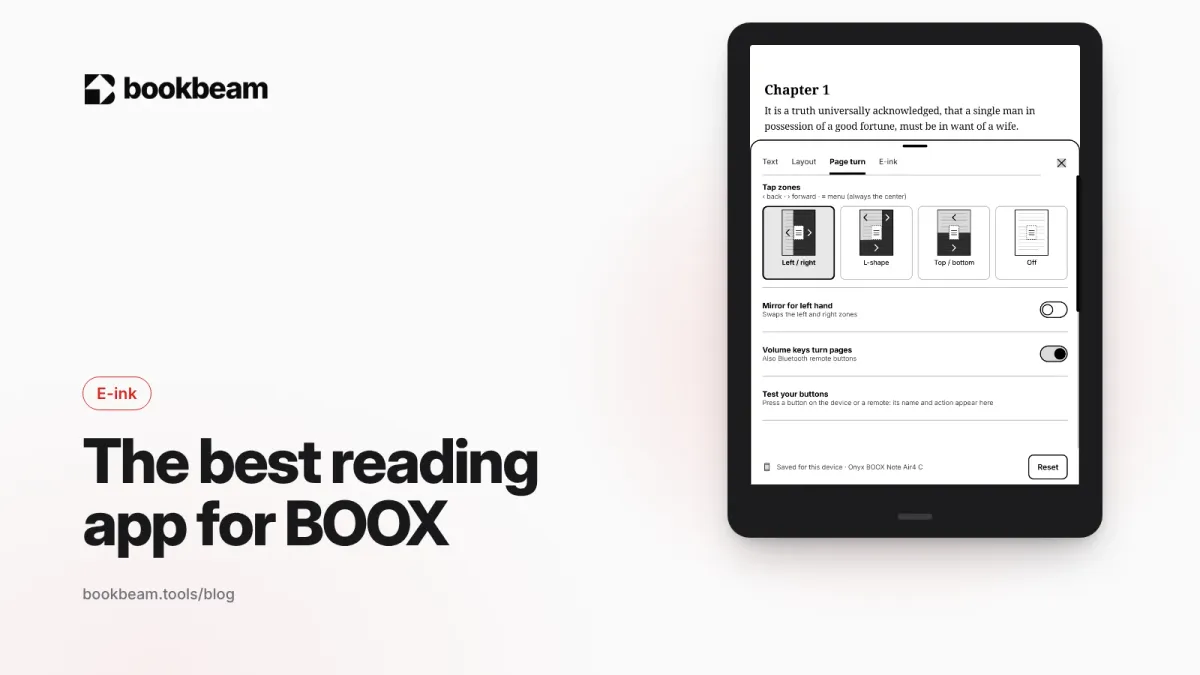
Under Page turn → Tap zones you can pick Left / right, an L-shape, Top / bottom or Off (if you only use buttons). The middle of the screen always opens the menu. Reading with your left hand? Mirror for left hand swaps the left and right zones.
Volume keys, remotes and headset buttons
Turn on Volume keys turn pages to use your phone's volume rocker; this also covers Bluetooth remote buttons, since most page turners send volume or keyboard keys. Headset buttons can turn pages too. If a single press skips two pages, turn on One page per press; if the buttons go the wrong way, use Reverse volume direction. And Test your buttons shows the name and action of each button you press, which settles most "why doesn't my remote work?" questions in seconds.
We cover remotes in depth, including which ones to buy, in our Bluetooth page turner setup guide.

Set it up your way.
Bookbeam lets you choose the footer, the tap zones and the refresh, on every Android e-reader.
Refresh settings: keep ghosting under control
E-ink screens leave faint traces of earlier pages, called ghosting, because most page turns are quick partial refreshes. A full refresh clears them with a brief flash. The E-ink tab gives you control over that trade-off:
- Full refresh every N pages. Use the plus and minus buttons to set how often the screen fully clears. On BOOX it uses the device's native refresh; on other devices it shows a quick black flash. Set it to 0 to let the device decide.
- Refresh now. Clears ghosting from the current page whenever you want a clean screen.
- Reduce motion. Turns off ripples, fades and scrolling animations across the whole app, which means fewer partial refreshes and less ghosting.
For text, a full refresh every 5 to 10 pages is a good starting point. Go lower for comics, image-heavy books or dark mode. On BOOX, also set the app to HD in Control Center → EinkWise → Refresh modes. The full walkthrough is in how to reduce ghosting on BOOX and other e-ink screens.
Text: size, weight, spacing and margins
Good typography is half of comfortable reading, and e-ink has its own quirks.
- Font. Choose Literata, the publisher's font, Atkinson, or a generic Serif or Sans. Atkinson is built for legibility, and the publisher's font keeps the look the book was designed with.
- Size. Drag the slider or use the plus and minus buttons. On a 6- or 7-inch e-reader you'll usually want a bit bigger than on a 10-inch one.
- Weight. Light, Regular, Medium or Bold. Thicker strokes read better on e-ink, so if text looks thin or grey, go up a step. It also helps with ghosting, since dark, solid text refreshes more cleanly.
- Line spacing. From 1.2 to 2.0. Around 1.4 to 1.6 suits most books; go wider if you lose your place between lines.
- Paragraphs. Indented, spaced, or both.
- Alignment. Justified or left-aligned.
- Margins. Narrow, Normal or Wide, in the Layout tab. Narrow fits more on a small screen; wide margins make lines shorter and easier to follow on a large one.
Orientation and landscape
In the Layout tab you can lock orientation to Portrait or Landscape, or leave it on Auto. In landscape, choose one page, two pages side by side, or a single wide page. Two pages works nicely on a 10-inch or larger e-reader, a bit like an open paperback.
Our suggested starting setup for BOOX
- Header & footer: Minimal, or Custom with the chapter title and time left in chapter. Quiet text on.
- Tap zones: Left / right, plus volume keys or a remote if you have one.
- Full refresh: every 6 pages or so, and Reduce motion on.
- Text: Literata or Atkinson, Regular or Medium weight, line spacing 1.4 to 1.6, Normal margins.
- Device: HD refresh mode for Bookbeam in BOOX's EinkWise settings.
Read for a few days, then adjust one thing at a time. If you also listen to books, see how to turn your e-books into audiobooks; the marker for the sentence being read has its own style setting.
Built for e-ink, tuned by you. Get crisp text, clean pages and the controls you actually use on your BOOX.
FAQ
How do I hide the page number and clock while reading?
In Bookbeam, go to Layout → Header & footer and choose Off. Or pick Custom and leave only the items you want.
Can I turn pages with the volume buttons on Android?
Yes. Turn on "Volume keys turn pages" in the Page turn tab. It also works with most Bluetooth page-turner remotes.
How often should my e-reader do a full refresh?
Every 5 to 10 pages for text is a good start. Refresh more often for comics, images or dark mode.
Do my reading settings sync between devices?
No, and that's on purpose: settings are saved per device, because a phone and an e-ink tablet need different setups. Your books, progress, highlights and notes do sync.
Make the page yours
A few minutes in the settings can turn a decent e-reader into one you don't want to put down. Start with the footer and the refresh interval, then fine-tune the text. If you're still deciding on an app for your device, see the best reading app for BOOX.
Your e-reader, your rules. Install Bookbeam free and set up the reading screen you've always wanted.
Written by
Builder and product marketer. I make Bookbeam, an e-ink-first e-book reader for Android, and Penlo, which makes the handwritten notes on your e-ink tablet searchable. Co-author of The AdTech Book.
Keep reading
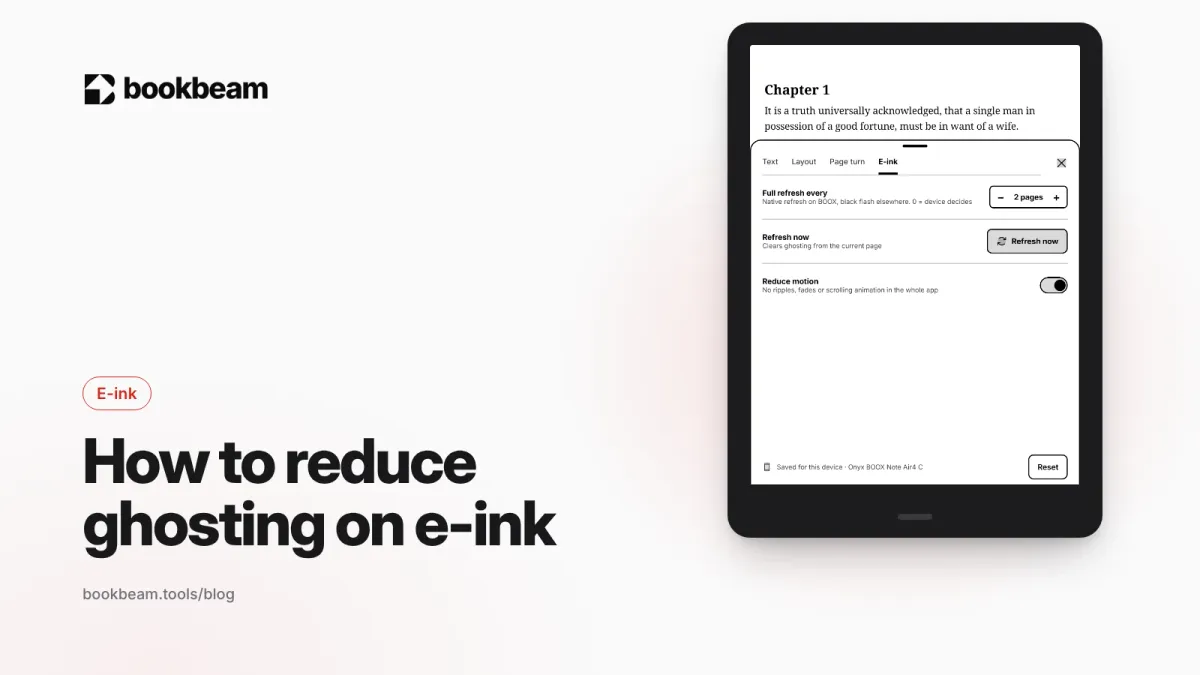
How to reduce ghosting on BOOX and other e-ink screens
Faint traces of old pages on your e-ink screen? That is ghosting. Here is why it happens and how to fix it on BOOX with refresh modes, full refreshes, paged reading and stronger text, plus quick fixes for Kindle and Kobo.
The best reading app for BOOX (and how it compares to NeoReader)
NeoReader comes with every BOOX and shines with PDFs and pen notes. For EPUB novels, phone sync, Calibre libraries and language tools, a dedicated app often does better. We compare NeoReader, Bookbeam, KOReader and others.
The best Android e-ink tablets in 2026
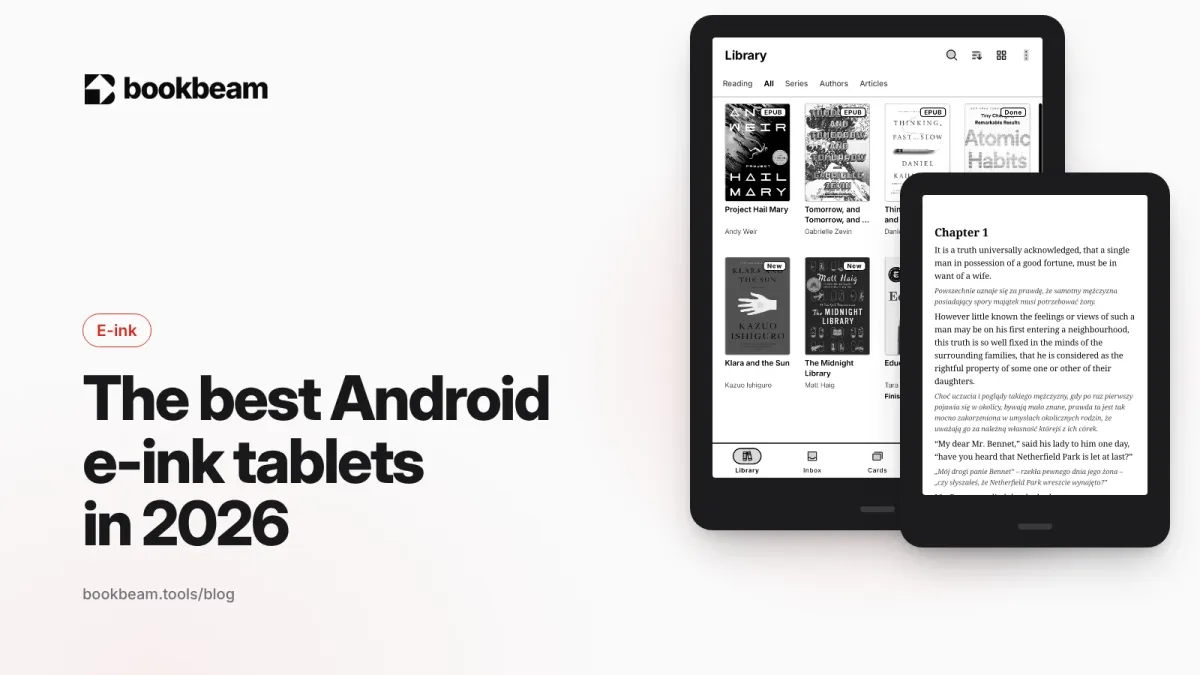
Android e-ink tablets let you install any reading app. We compare the BOOX Go 6, Go 7, Palma 2, Go 10.3, Note Air6 C and Tab X C, plus Bigme and Meebook, on screen size, color, stylus and price.
Questions or thoughts? Share them below.