
How to listen to your e-books in the car with Android Auto
Your e-books can play in the car like audiobooks. Here's how to listen with Android Auto: pick up where you stopped reading, jump between chapters, control it from the steering wheel and choose the right voice.

Michal Wlosik
· 4 min read
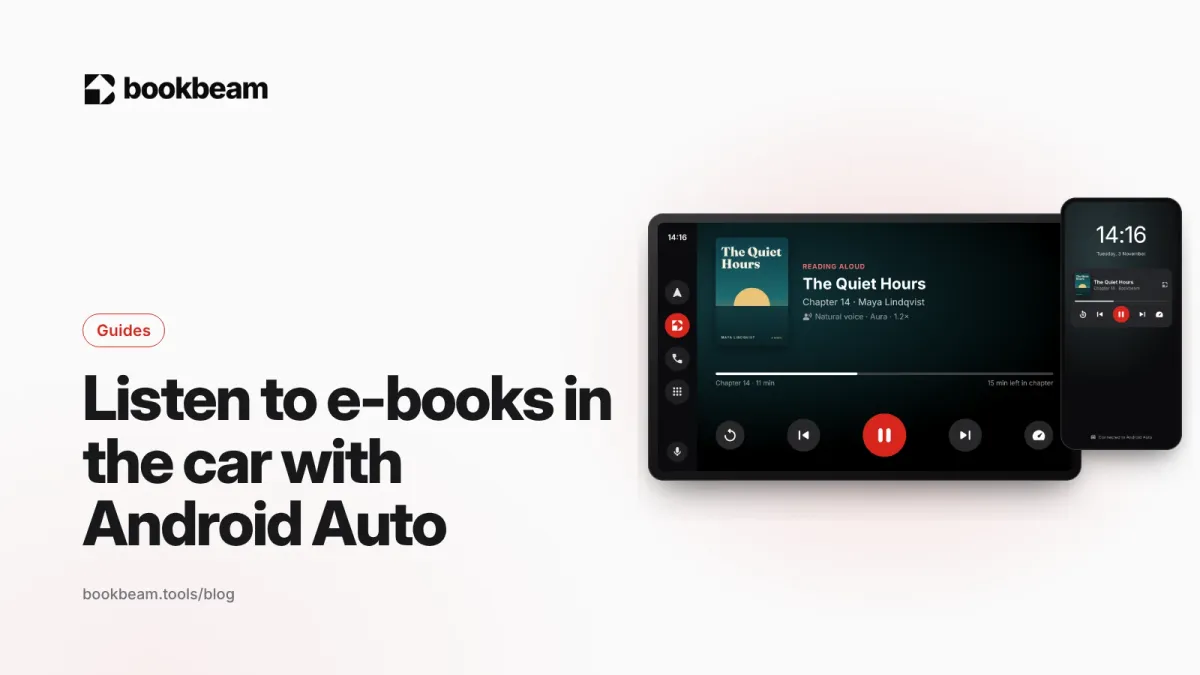
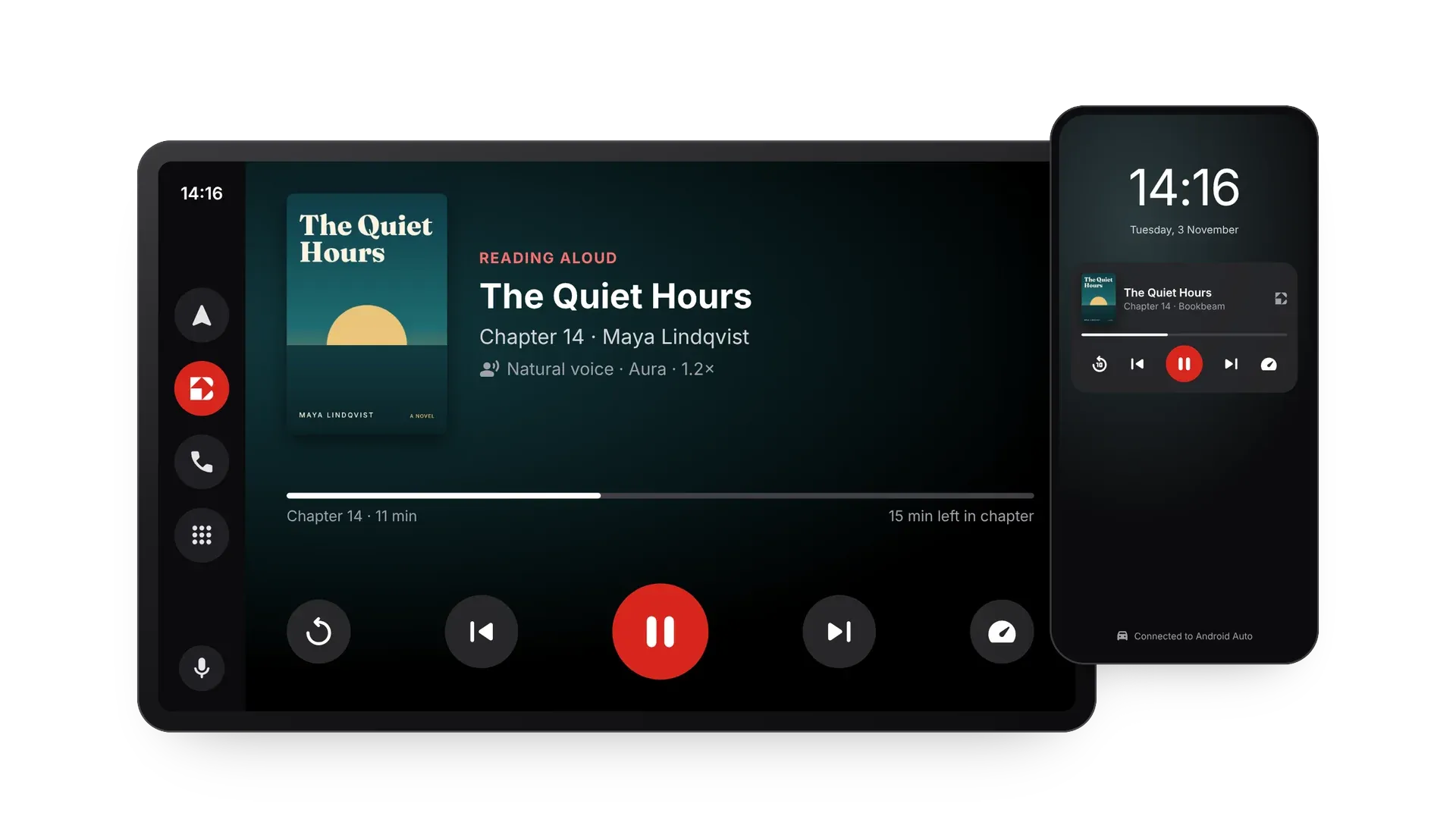
Short answer: to listen to your e-books in the car, use a reading app that reads books aloud and supports Android Auto. Connect your phone, open the app on the car's screen and pick a book. Bookbeam starts at the sentence where you stopped reading on your phone or e-reader, reads it with a natural voice, and gives you chapters, speed and steering-wheel controls, just like an audiobook app.
Why listen to e-books, not just audiobooks?
Audiobooks are great, but you usually buy them separately, and only a fraction of books have one. Most of what you read, from the novel on your e-reader to the long article you saved this morning, exists only as text. A good text-to-speech voice turns all of it into something you can listen to on the commute, and when you get home you carry on reading from exactly where the voice stopped. Our roundup of text-to-speech e-book readers for Android compares the apps that do this.
How to set it up
- Install Bookbeam Reader on your phone from Google Play and sign in, so your library and reading position sync.
- Connect your phone to the car by cable or wirelessly, as you normally do for Android Auto.
- Open Bookbeam from the Android Auto launcher. It sits with your other media apps.
- Pick a book and it starts playing from where you left off.
Bookbeam appears in Android Auto on its own once it's installed; there's nothing extra to set up. If you don't see it, check that Android Auto and Bookbeam are both up to date, and that Bookbeam isn't hidden in Android Auto's launcher settings.
What you get on the car's screen
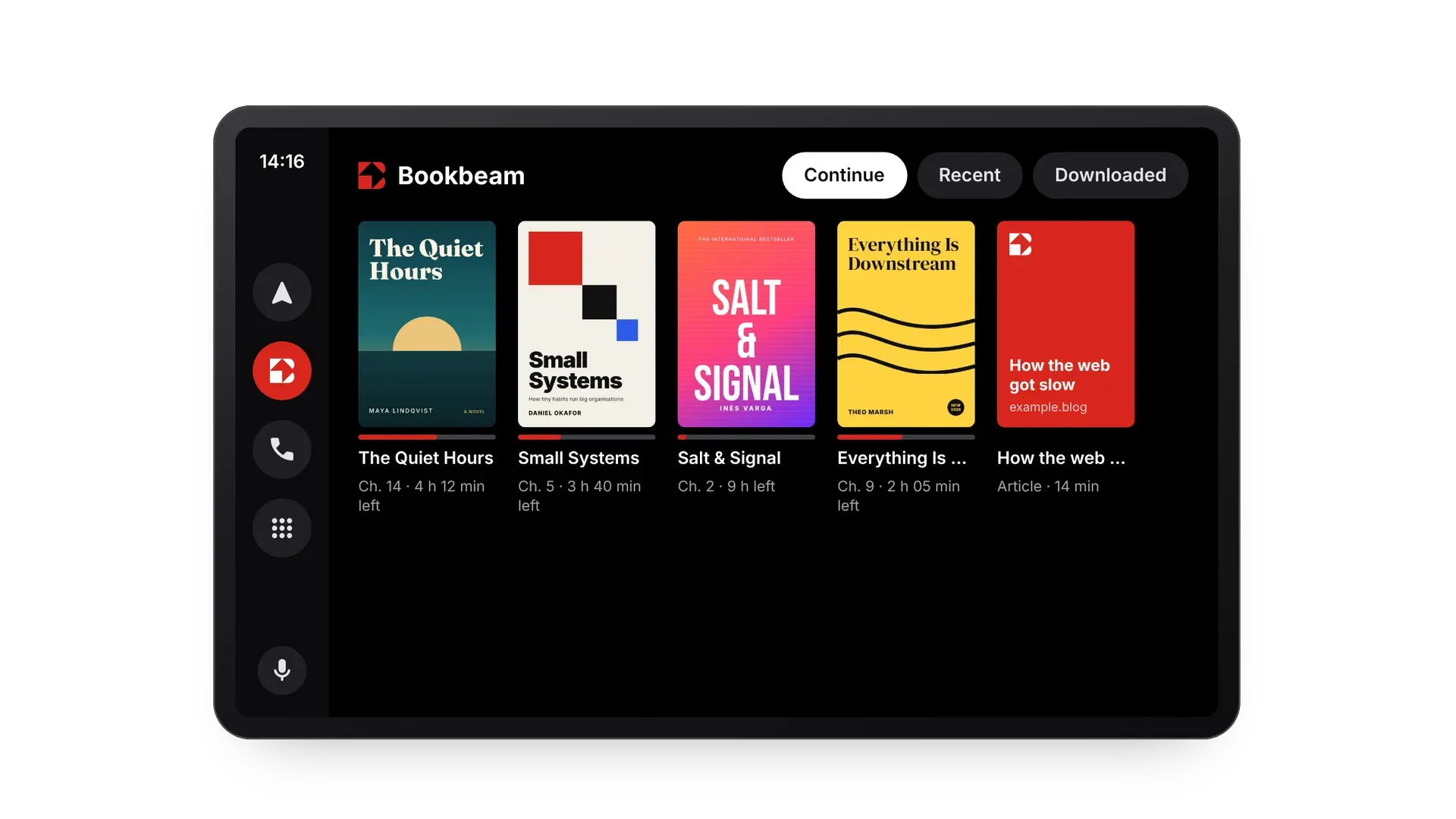
- Continue, Recent and Downloaded. What you're reading now, books you opened lately, and everything already on your phone.
- Starts at your sentence. Your position syncs from your e-reader, tablet and phone, so the car picks up mid-chapter, not at the start.
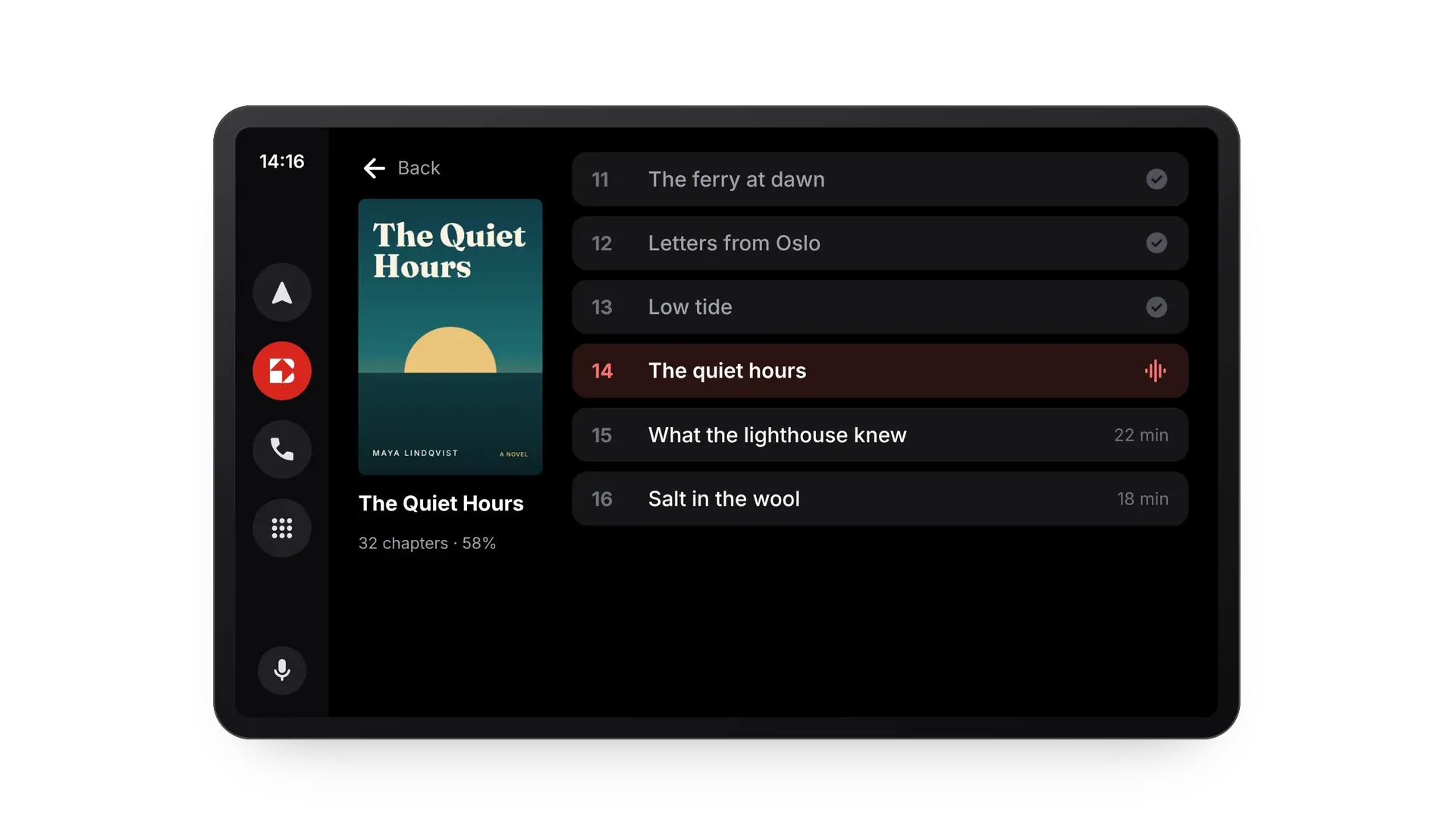
- Chapters. Open a book to see its chapters, with finished ones ticked and the time left on the rest.
- Driving controls. Pause, skip, go back to the start of a sentence and change the speed, from the screen or the buttons on your steering wheel.
- Voice. Keep your hands on the wheel and ask Google Assistant to play your book on Bookbeam.

Take your books on the road. Bookbeam works with Android Auto as soon as it's on your phone.
Which voice to use in the car
- Natural voices from ElevenLabs and Deepgram sound close to a human narrator and are the most pleasant for long drives. They stream, so they use mobile data, and they count towards your voice time: 1.5 hours a month on Pro, with voice packs if you listen a lot.
- Your phone's own voice is free, unlimited and works with no signal. It's more robotic, but on a long trip through areas with poor coverage it's the reliable choice.
Pick your voice in the player on your phone before you set off, and Bookbeam remembers it.
Tips for listening while driving
- Choose the right books. Plot-driven fiction, memoirs and essays work best. Books full of tables, footnotes or code don't.
- Slow down a little. 0.9× to 1.0× is easier to follow with your attention on the road than the 1.3× you might use at home.
- Send long articles before you leave. With the Send to Bookbeam extension, a long-read you found on your laptop becomes an e-book on your phone in one click.
- Keep your eyes on the road. Set everything up before driving and use voice and steering-wheel controls once you're moving.
FAQ
Is Android Auto support free?
No. Android Auto is part of Bookbeam Pro and Lifetime, and every new account gets a 7-day Pro trial to try it. In the car, the phone's voice costs nothing extra, and natural voices use your monthly voice time or a voice pack.
Which books can I listen to?
Any DRM-free book Bookbeam can open, such as EPUB, MOBI, FB2 and TXT, plus articles and YouTube transcripts you send from the web.
Does it work with Apple CarPlay?
No. Bookbeam is an Android app, so it supports Android Auto.
Line up something to listen to. Send long articles and YouTube talks to Bookbeam from Chrome, and play them in the car.
See the Android Auto page, or the Wear OS app for controls on your wrist.
Written by
Builder and product marketer. I make Bookbeam, an e-ink-first e-book reader for Android, and Penlo, which makes the handwritten notes on your e-ink tablet searchable. Co-author of The AdTech Book.
Keep reading
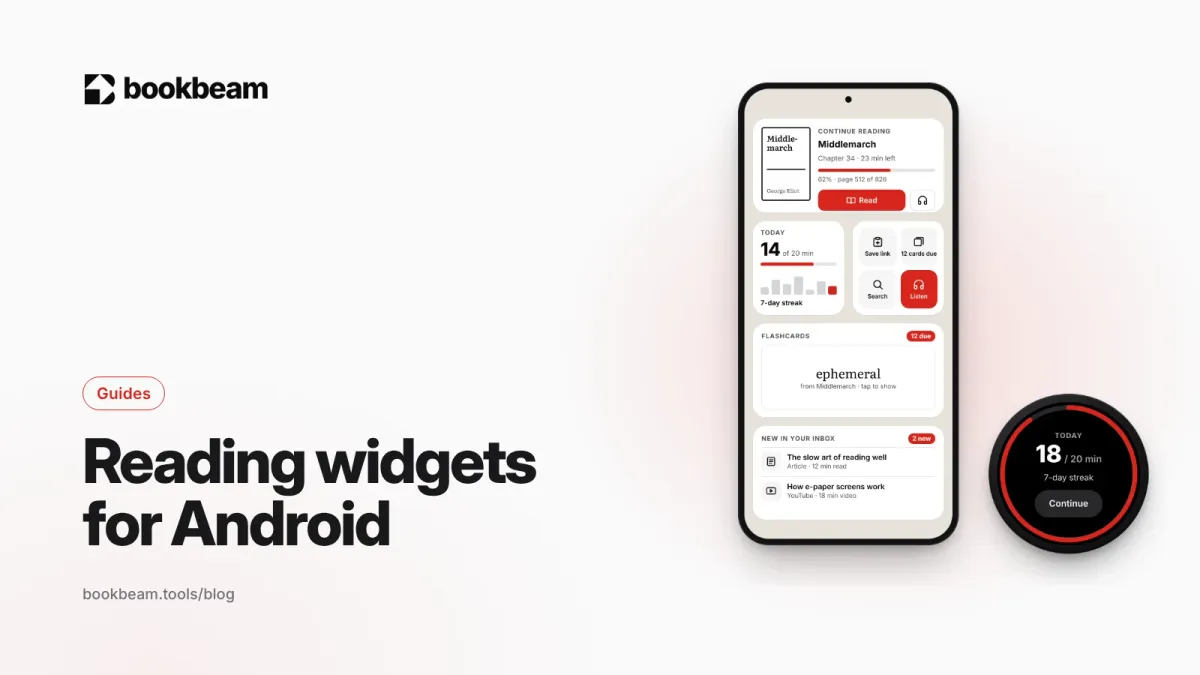
Reading widgets for Android: put your book on your home screen
The easiest way to read more is to make your book the first thing you see when you unlock your phone. Here are Bookbeam's home-screen widgets, what each one does, and how to set them up for a daily reading habit.
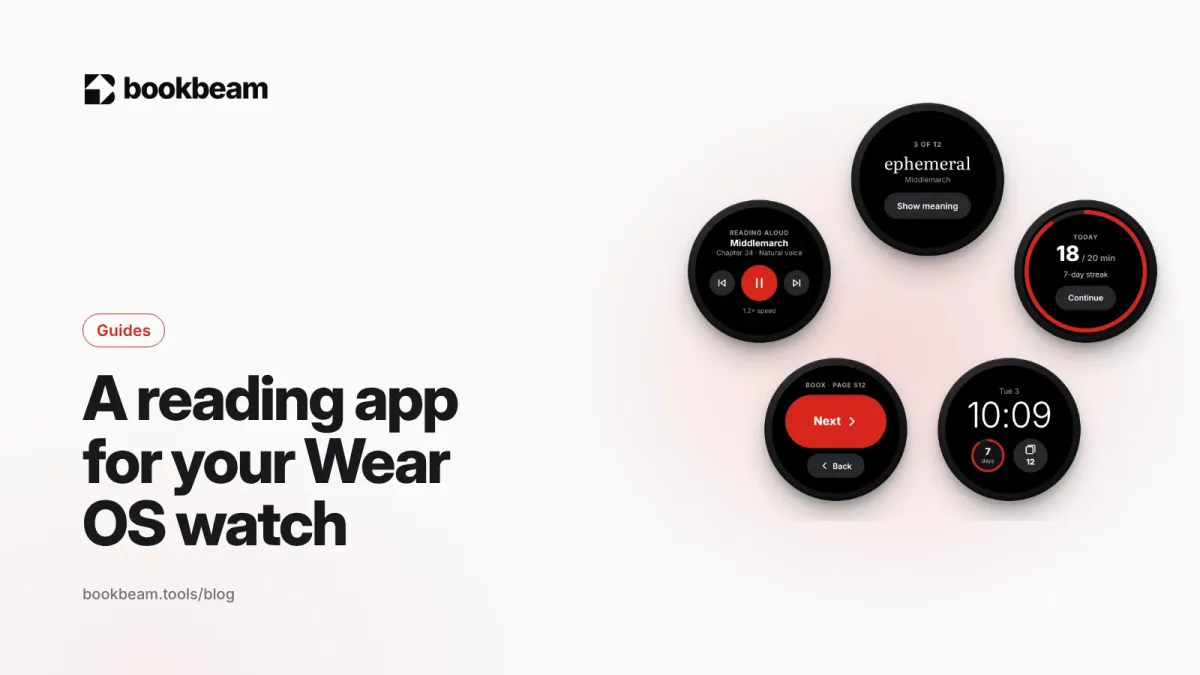
A reading app for your watch: flashcards, reading goals and read-aloud controls on Wear OS
A watch is too small for reading, but just right for the bits around it: a quick flashcard review, a glance at today's goal, pausing the voice reading your book. Here's what Bookbeam does on Wear OS and how to set it up.
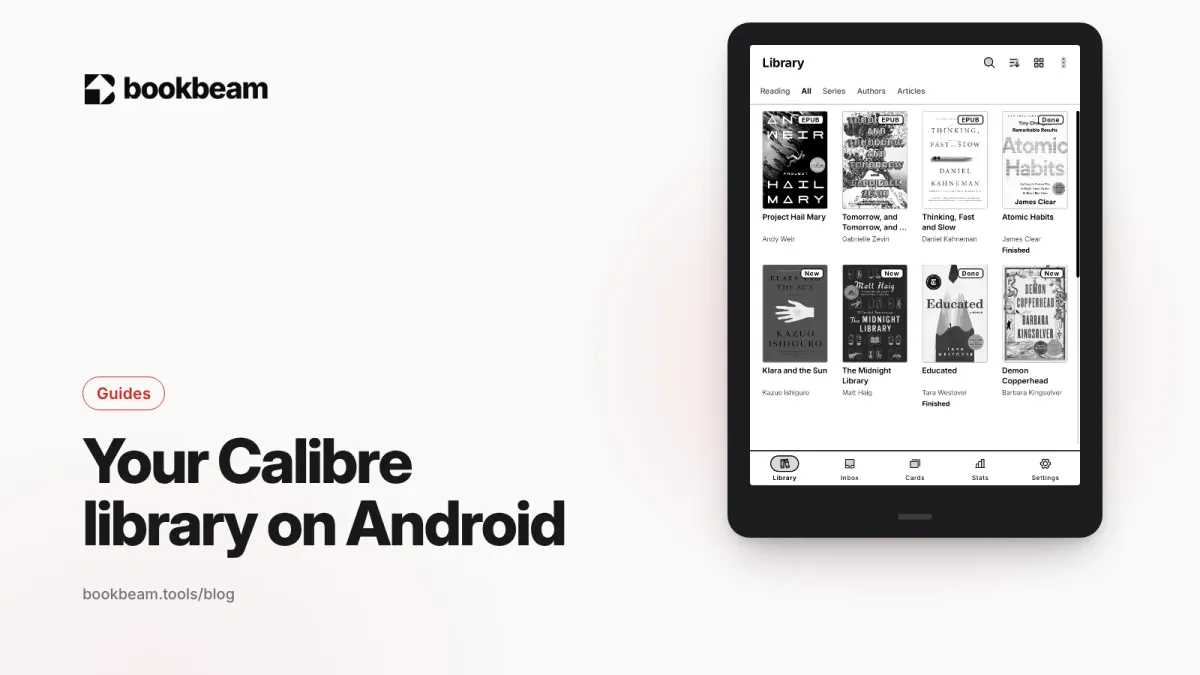
How to use your Calibre library on Android
Calibre's built-in Content server publishes your library as an OPDS catalog. Here's how to connect it to an OPDS-capable Android app, lock it down with a password, reach it away from home, fix the usual connection problems, and get Calibre books into Bookbeam by exporting and uploading them.
Questions or thoughts? Share them below.