
A reading app for your watch: flashcards, reading goals and read-aloud controls on Wear OS
A watch is too small for reading, but just right for the bits around it: a quick flashcard review, a glance at today's goal, pausing the voice reading your book. Here's what Bookbeam does on Wear OS and how to set it up.

Michal Wlosik
· 3 min read
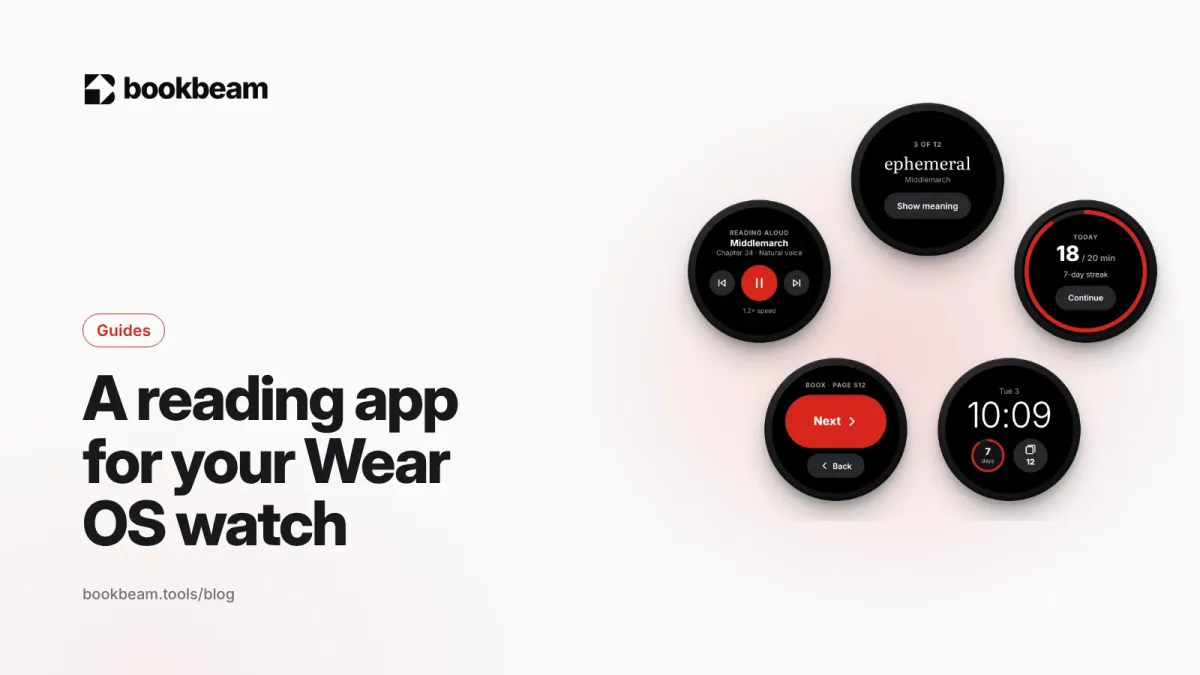
Short answer: nobody wants to read a novel on a watch, but a watch is ideal for the small reading habits around it. Bookbeam for Wear OS lets you review the words you saved while reading in ten seconds, see today's reading minutes and streak on a tile or watch face, and pause or skip the voice reading your book aloud. It's a companion to the Bookbeam app on your phone and signs in through it, so there's nothing to set up on the watch.
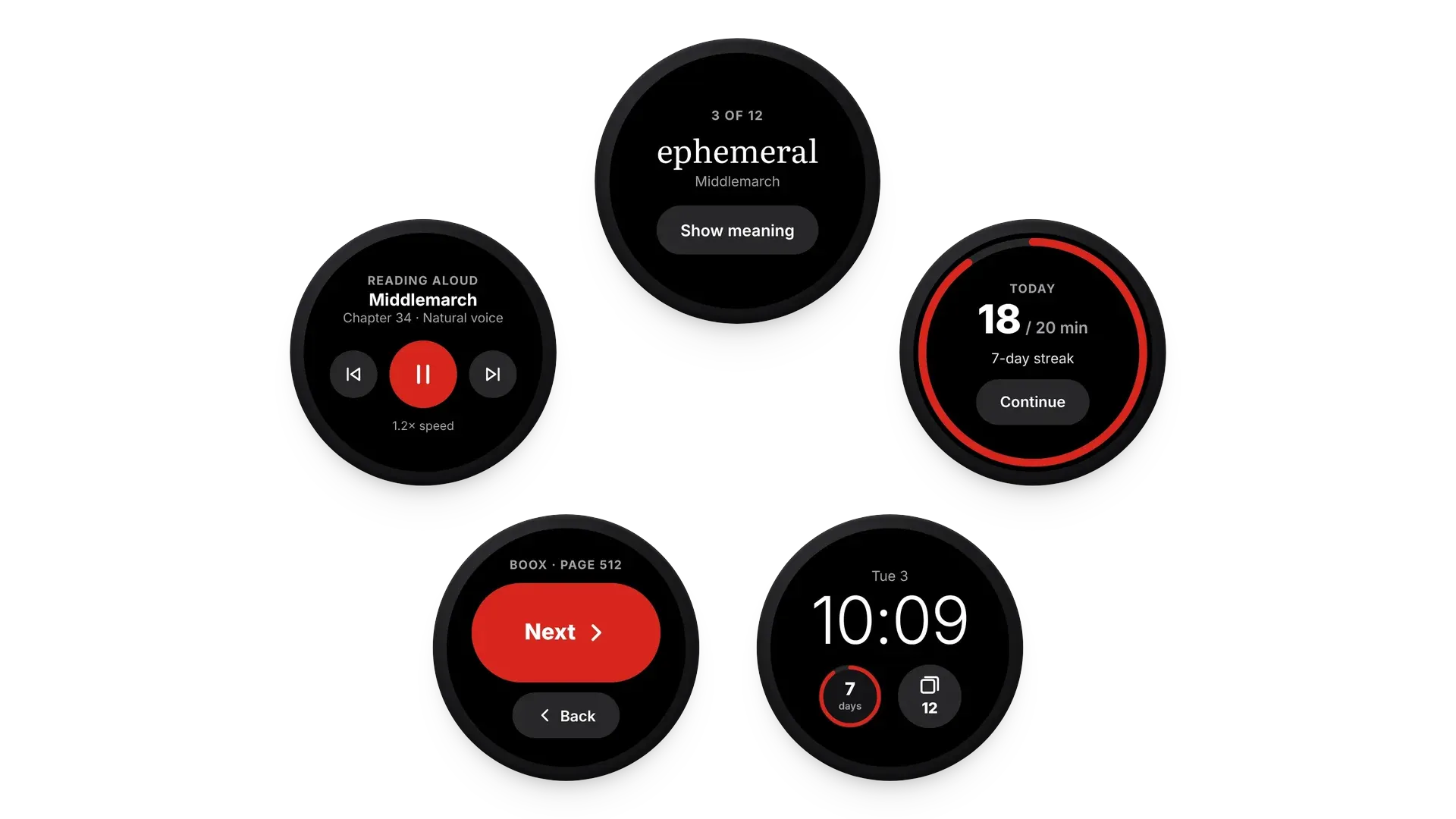
Flashcards in ten seconds
Vocabulary sticks when you meet words again and again, in short sessions spread over days. That's exactly what a watch is good at. Every word you save while reading, with its translation and sentence, shows up on your wrist. Tap to see the answer, then mark it Again or Knew it. Bookbeam schedules the next review and keeps your phone, e-reader and watch in step.
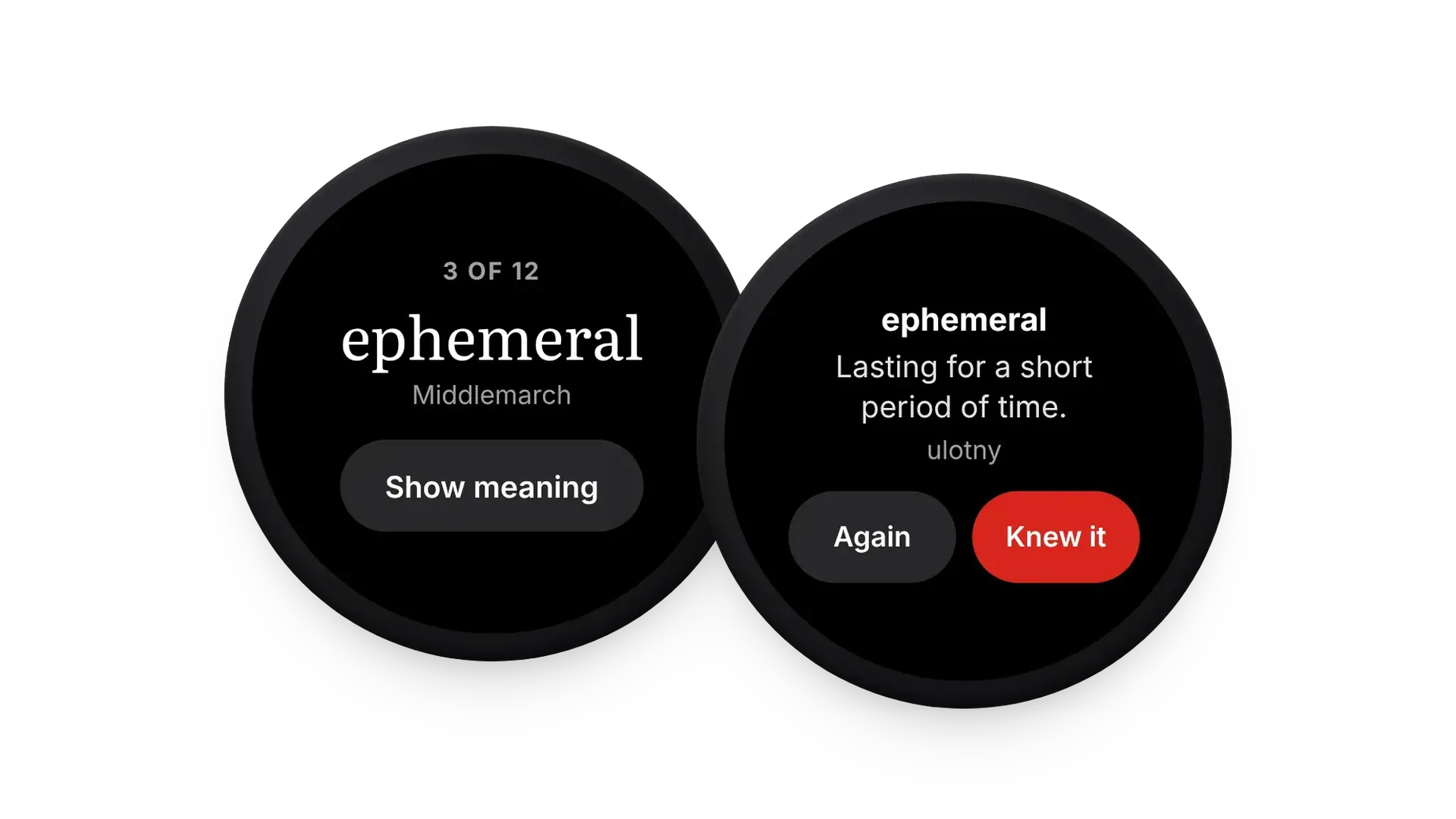
Three cards while the coffee brews add up to dozens of reviews a week, without opening your phone. For where those words come from, see how to look up words while you read.
Your reading goal at a glance
Add the Bookbeam tile to see today's reading minutes against your daily goal, plus your streak, with one tap to continue your book on your phone. Prefer your watch face? Put your streak or the number of cards due on it as a complication.
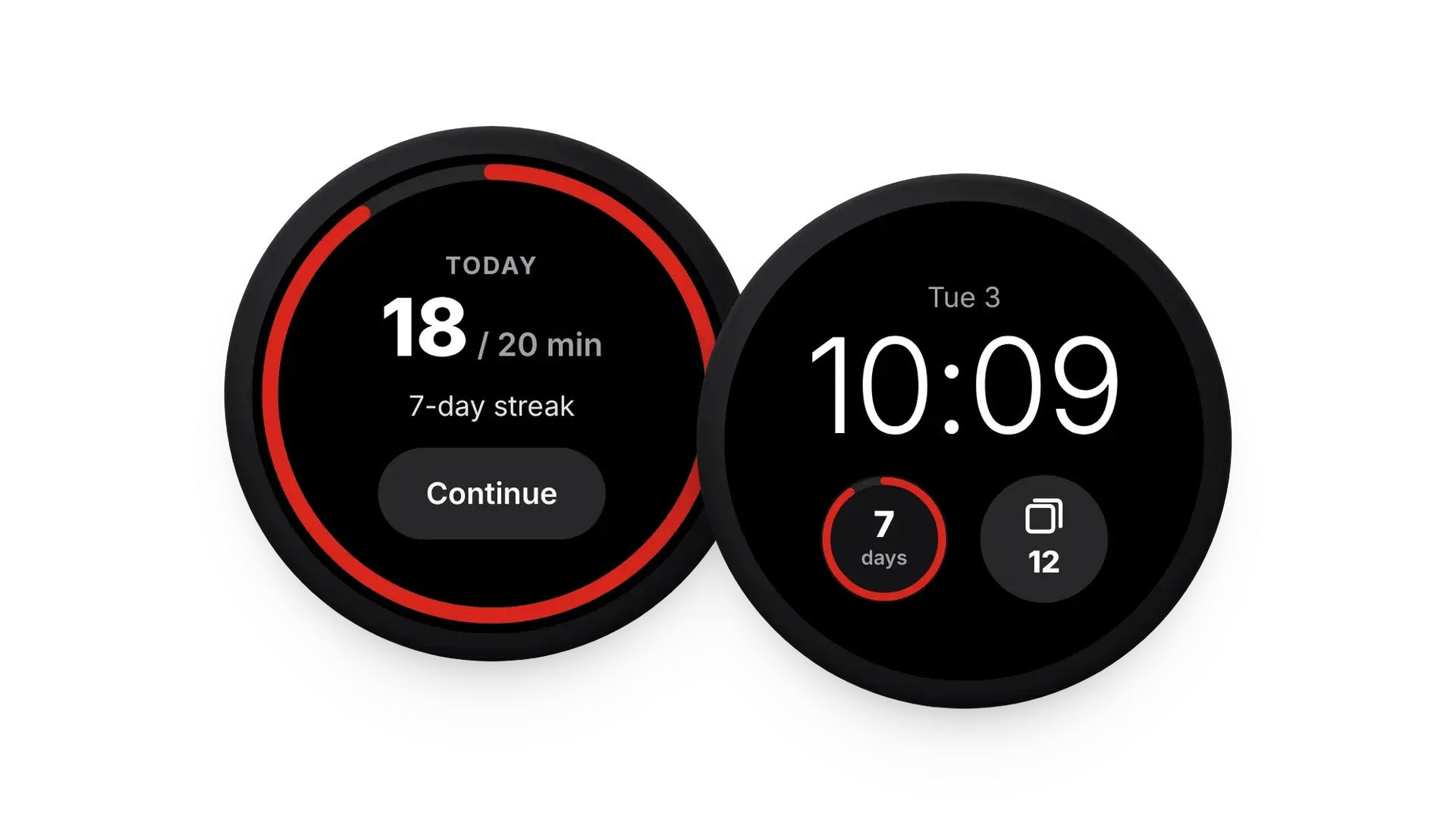

Put your reading on your wrist. The Wear OS app comes with Bookbeam Reader, free.
Control read-aloud from your wrist
When Bookbeam reads a book aloud on your phone, the watch shows what's playing with pause, skip a sentence and go back. It's handy when your phone is in a pocket or across the room, and it pairs nicely with listening in the car (see listening to e-books with Android Auto).
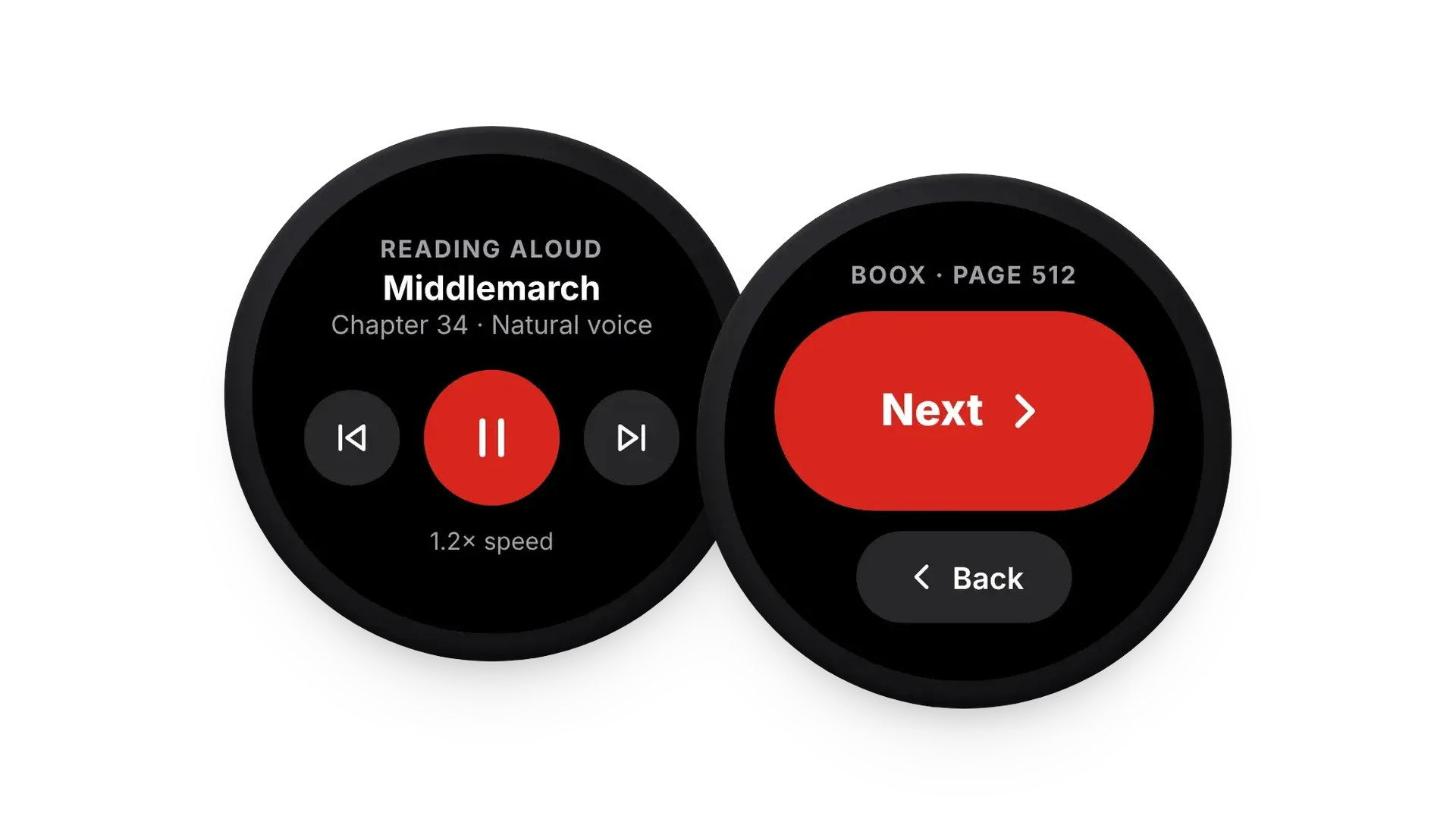
With Pro, the watch is also a page turner: tap Next or turn the crown to turn the page in Bookbeam on your phone or tablet. It's a nice way to read in bed with the device propped up. If you read on a BOOX, a Bluetooth remote is the better fit; see our page turner guide.
How to install it
- Install Bookbeam Reader on your Android phone and sign in.
- On your watch, open the Play Store, search for Bookbeam and install it. Or, on your phone's Play Store page for Bookbeam, choose to install it on your watch too.
- Open Bookbeam on the watch. It signs in through your phone automatically.
- Long-press your watch face to add the tile or a complication.
FAQ
Is the Wear OS app free?
Yes. Flashcards, the tile, complications and read-aloud controls are free. The page turner is part of Pro.
Which watches does it work on?
Watches running Wear OS 3 or later, such as Pixel Watch and Galaxy Watch 4 and newer, paired with an Android phone.
Does it work with an iPhone?
No. Wear OS watches need an Android phone, and Bookbeam Reader is an Android app.
Collect words from the web too. Send articles to Bookbeam from Chrome, save new words, and review them on your watch.
More on the Wear OS page, and see the home-screen widgets for your phone.
Written by
Builder and product marketer. I make Bookbeam, an e-ink-first e-book reader for Android, and Penlo, which makes the handwritten notes on your e-ink tablet searchable. Co-author of The AdTech Book.
Keep reading
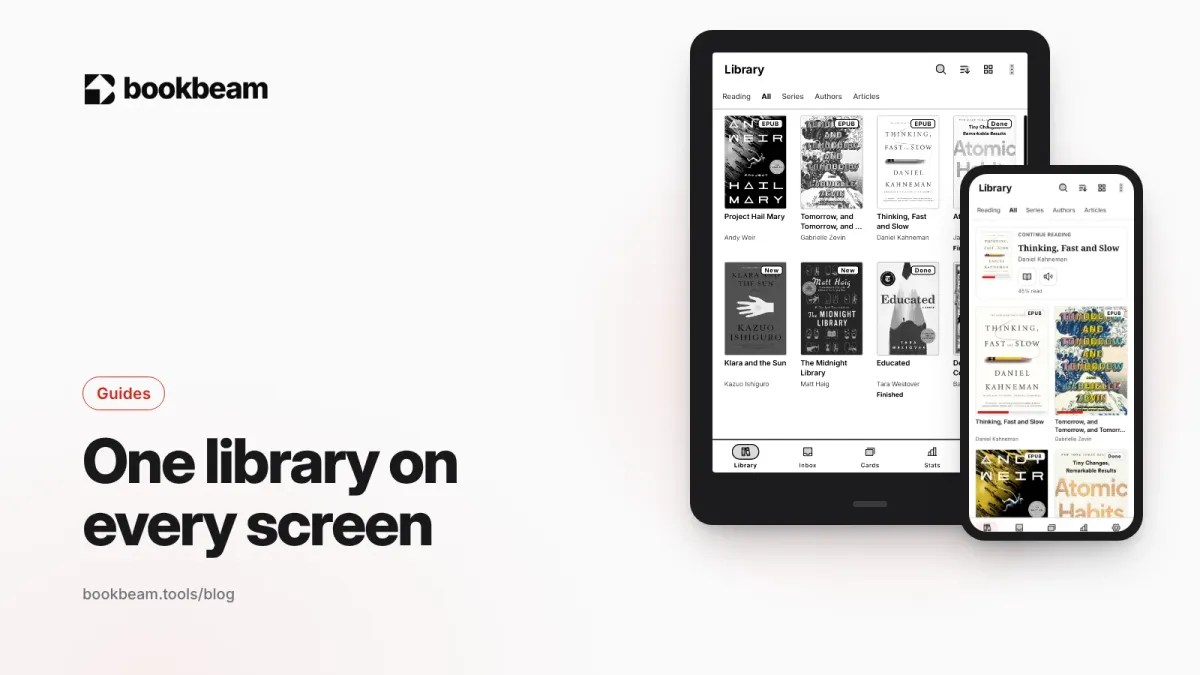
One library on your BOOX, phone and the web: how to sync your e-books
Stop copying files between devices. Keep one synced library on your BOOX, phone and the web, with progress, highlights and notes that follow you.
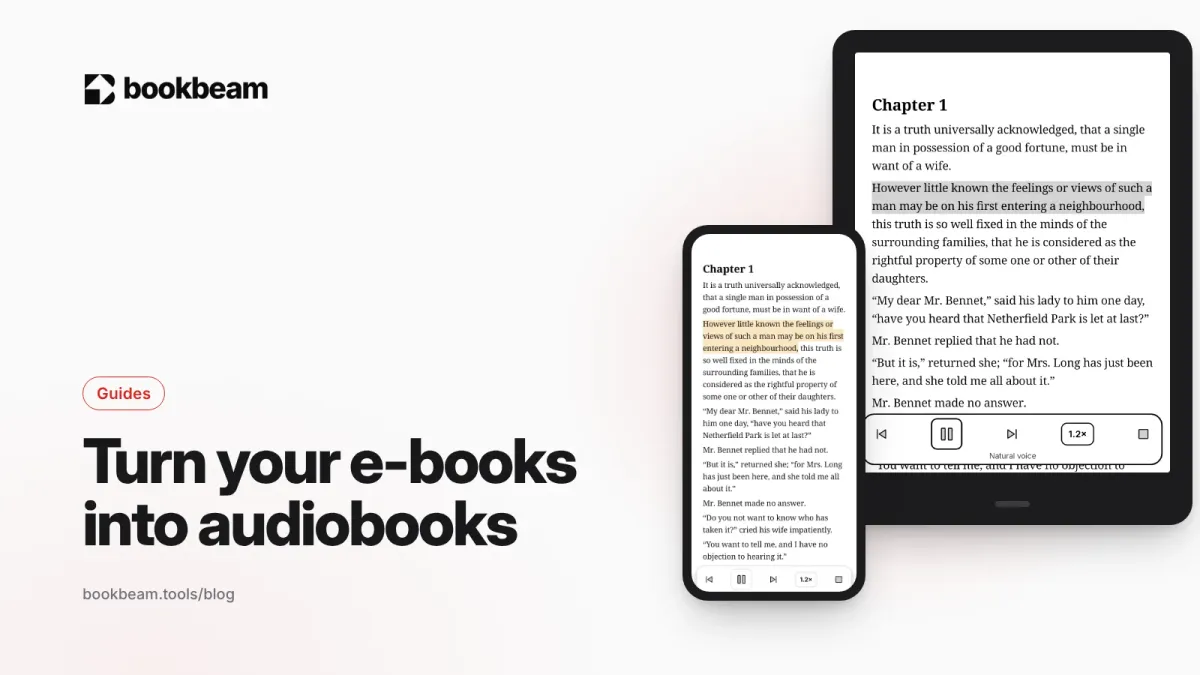
How to read your e-books just like audiobooks
Turn the e-books you already own into audiobooks on your BOOX, e-reader or phone, with a free offline voice or natural voices that follow along on the page.
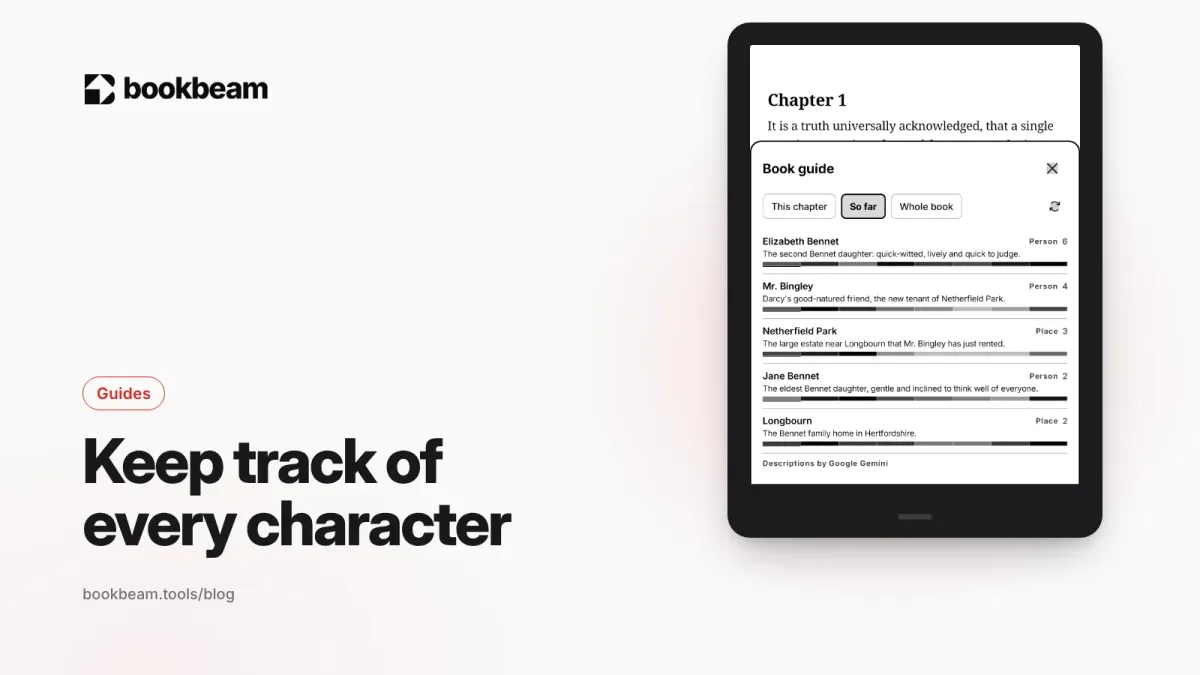
How to keep track of characters in long novels (without spoilers)
A spoiler-free way to keep track of characters, places and terms in long novels, with Bookbeam's Book guide and simple habits that work in any app.
Questions or thoughts? Share them below.